myLesley Overview and Navigation
TABLE OF CONTENTS
- What is myLesley/Blackboard?
- Login to myLesley
- Navigate myLesley
- Accessibility in myLesley
- Training and Support
What is myLesley/Blackboard?
myLesley (Blackboard) is the university's learning management system and functions as your online classroom. You may use myLesley to attend or teach fully online courses, supplement face-to-face courses, access community resources, and more.
Before you log in:
- Review the System Requirements to make sure that your system meets the hardware and software requirements.
- Make sure your browser is compatible:
- Chrome and Firefox tend to be the most compatible with all of the Lesley supported tools. As a best practice, have more than one browser installed and make sure they are always up-to-date.
- Run the Blackboard Browser Checker to make sure that your system is compatible with myLesley/Blackboard. The Browser Checker will confirm that your operating system, browser, cookies, and pop-up blocker are compatible.
Login to myLesley
To login to myLesley, go to https://my.lesley.edu and click on the myLesley Login button.

You will be redirected to a Sign In page, where you will enter your Lesley credentials in the form of username@lesley.edu. You will then be prompted to enter your password to authenticate.
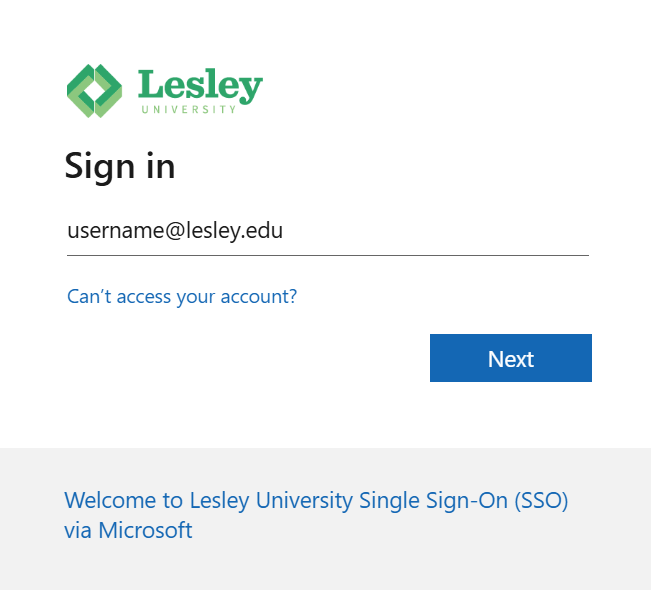
Note: Please note that Safari is NOT compatible with the SSO application. Please use Chrome or Firefox as they are the most compatible. For more information, refer to the Single Sign-On (SSO) at Lesley University support article.
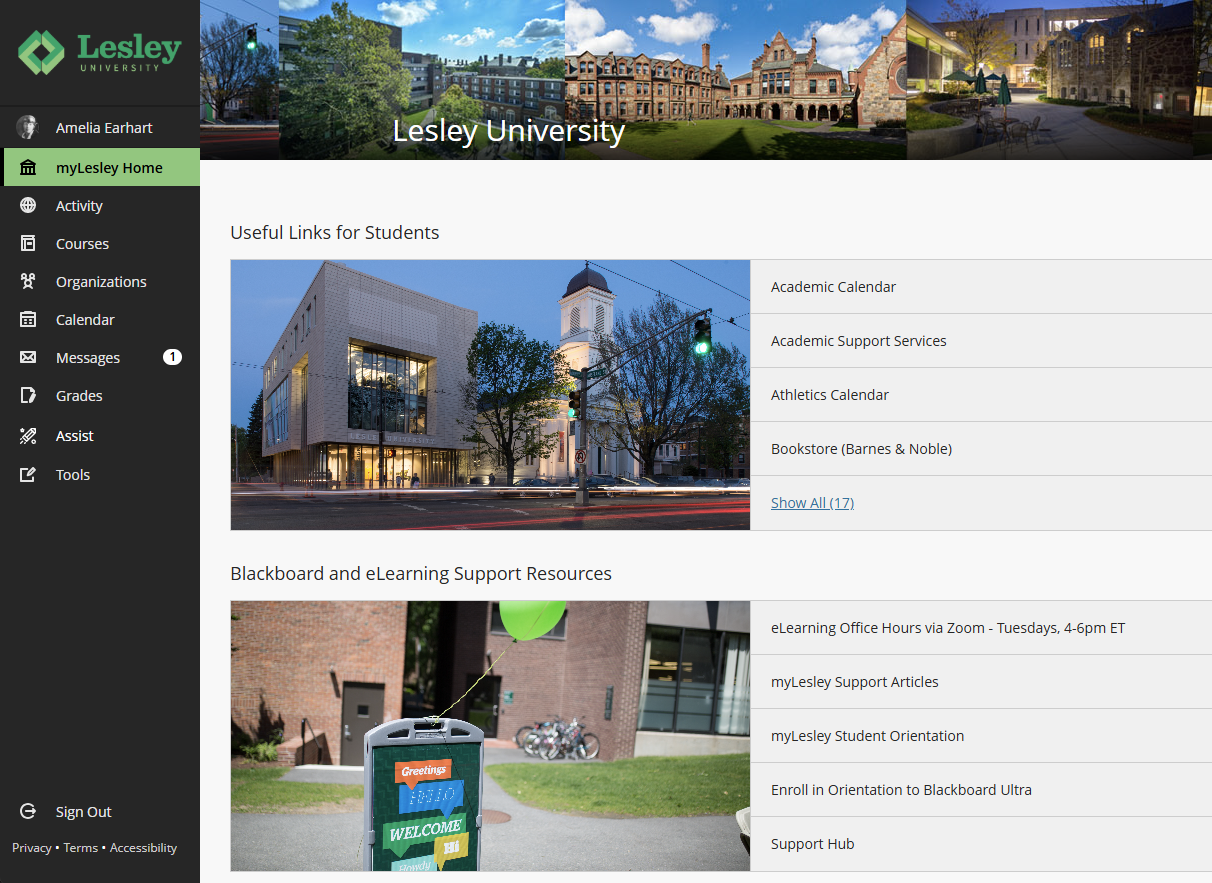
Once you log in you will be brought to the myLesley Home page. You can navigate to other sections of myLesley by clicking on the links in the left-hand navigation menu.
Navigate myLesley
Once you log in you will be brought to the myLesley Home page. You can navigate to other sections of myLesley by clicking on the links in the left-hand navigation menu.
myLesley Home
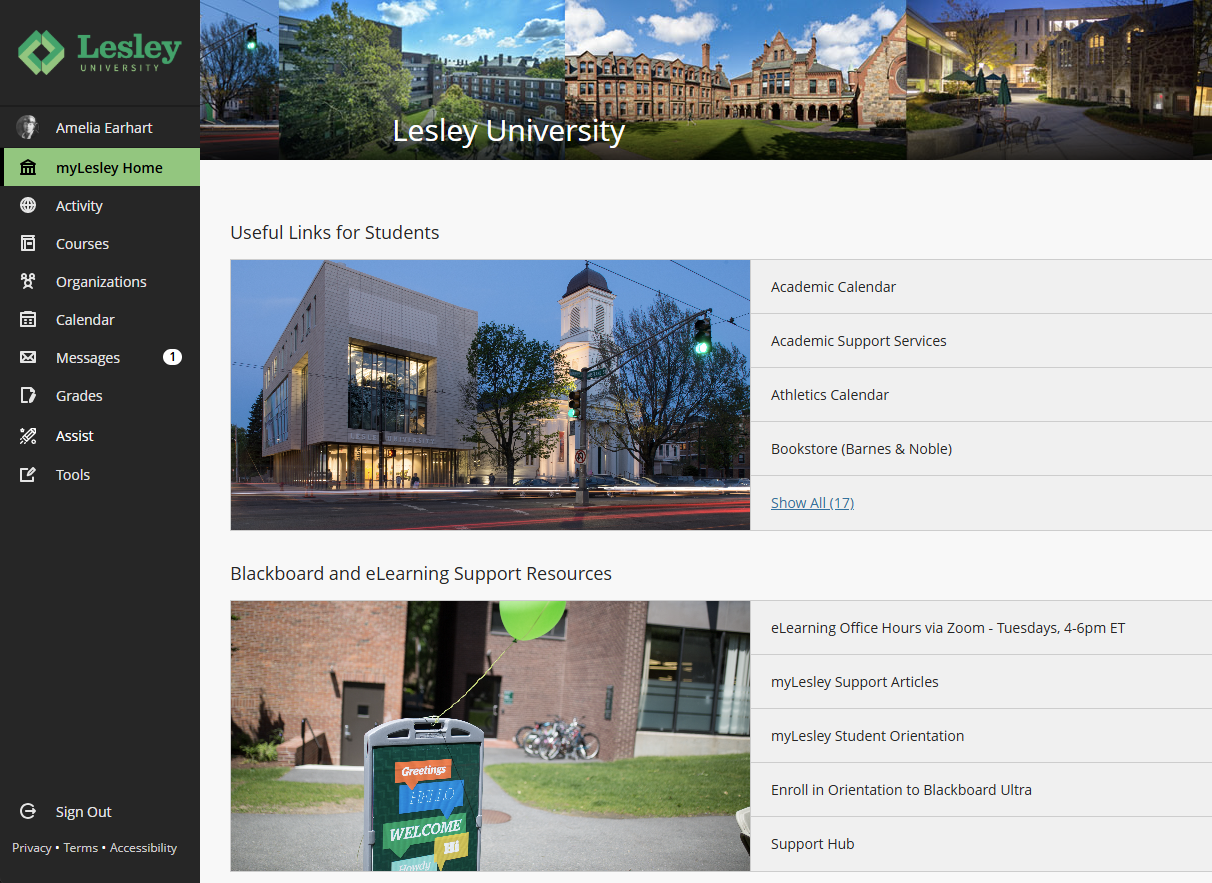
The myLesley Home page is the go-to resource for Lesley resources, useful links, and other important content. The content will vary slightly depending on your role at the university (student, faculty, staff).
Update Your Profile
When you log into the system, you will find your name at the top of the left-hand side of the screen. Select your name to view and update your personal profile.
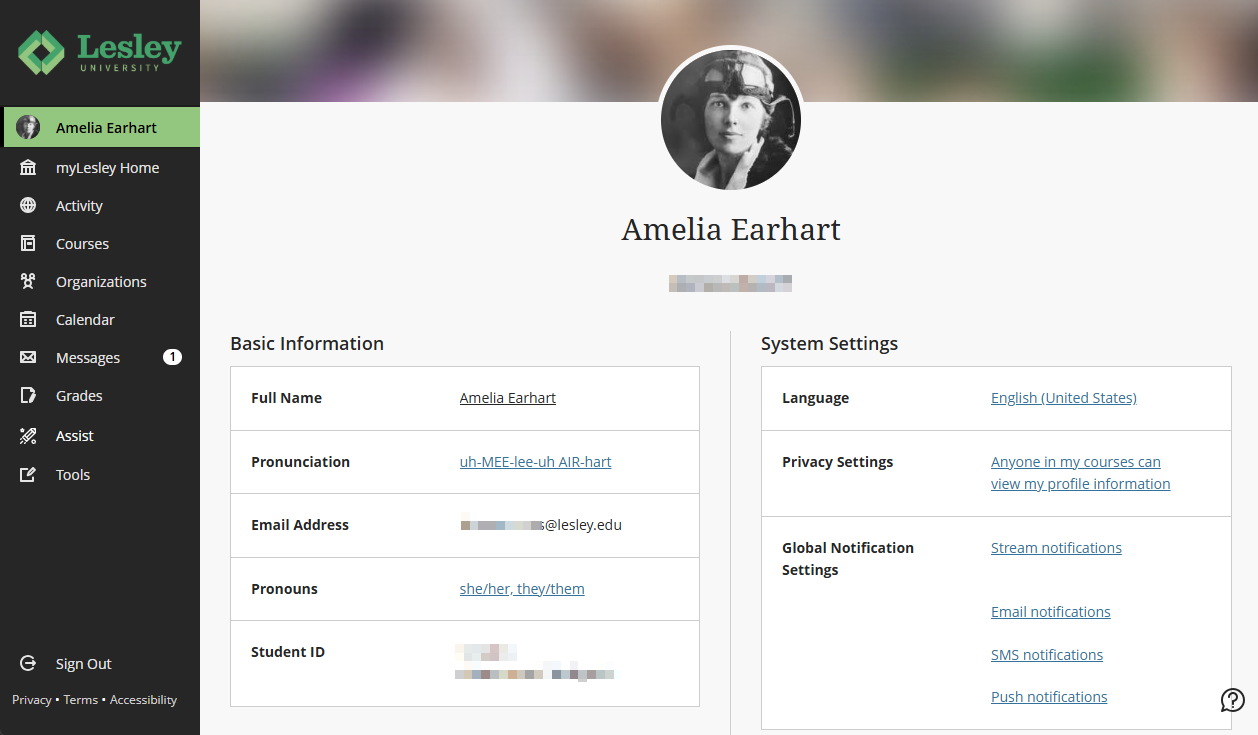
On your profile page you can:
- Upload a profile picture.
- Add your name pronunciation and preferred pronouns.
- Update your privacy settings.
- Edit your Notification settings.
Note: You cannot edit or update your contact information on the Profile page - you must update this information in Self-Service.For more information, refer to the Edit Your myLesley Profile support article or watch the Customize Your Profile tutorial video.
View Your Activity Stream
Your Activity Stream provides you with real-time notifications of activity in all of your courses, including upcoming due dates, grades, and instructor feedback. Your content is displayed in groups to make the list easier to scan: upcoming, today, and recent.
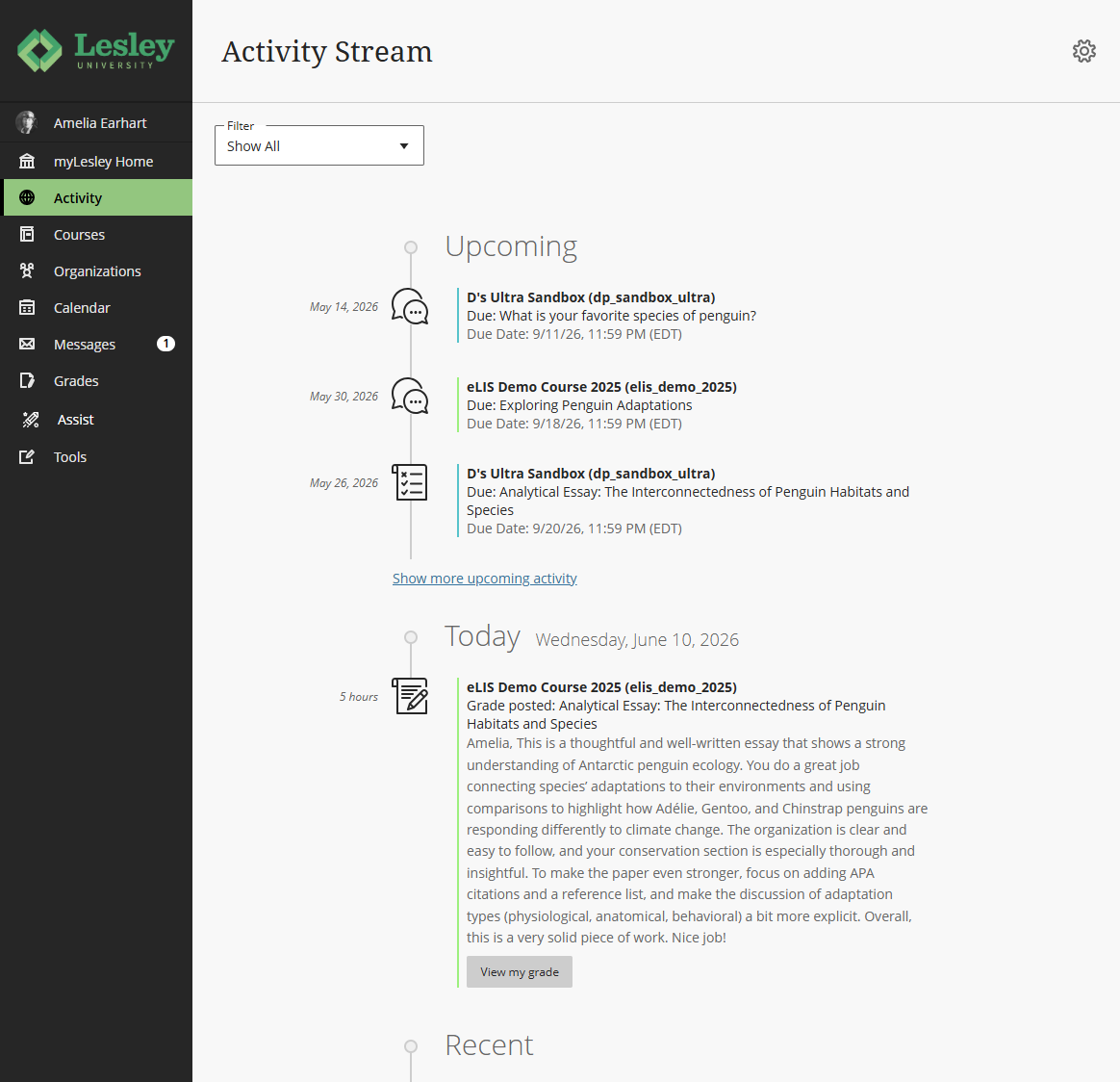
On the Activity Stream you can:
- Select an item to go directly to the content or activity. For example, you can view an upcoming assignment or recently graded test.
- Filter the stream based on the information you would like to see.
- Control the types of notifications you receive.
Watch the Activity Stream tutorial video for more information.
Find Your Courses
The Courses page allows you to view courses in which you are enrolled, view high-level course information, and access your courses. The courses appear on the Course Timeline in alphabetical order by course name and includes past, present, and upcoming courses.
Use the Favorite button (star icon) to mark your current courses as favorites and move them to the top of the page. You may also use the Search feature to search for a specific course by name, course ID, or instructor.
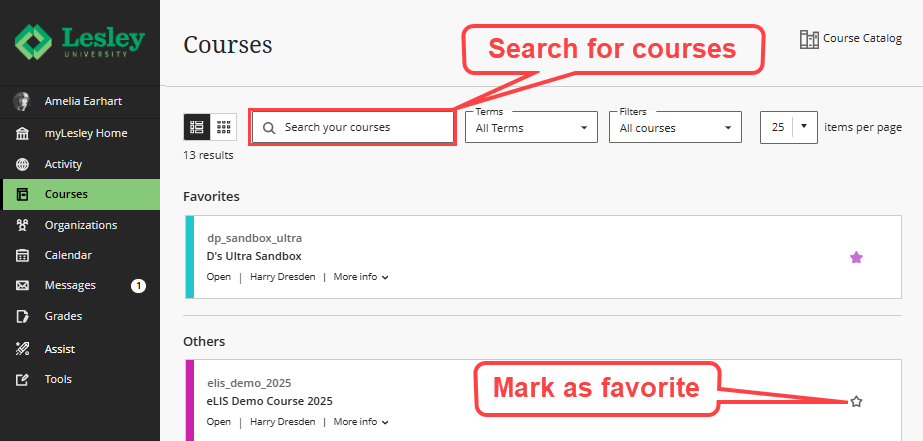
Having trouble finding your course(s)? Refer to the Getting Access to myLesley courses support article for more information.
Find Your Organizations
Much like the Courses page, the Organizations page will show you all of the organizations (formerly called Communities) in which you are enrolled. Click on an Organization to view the materials.
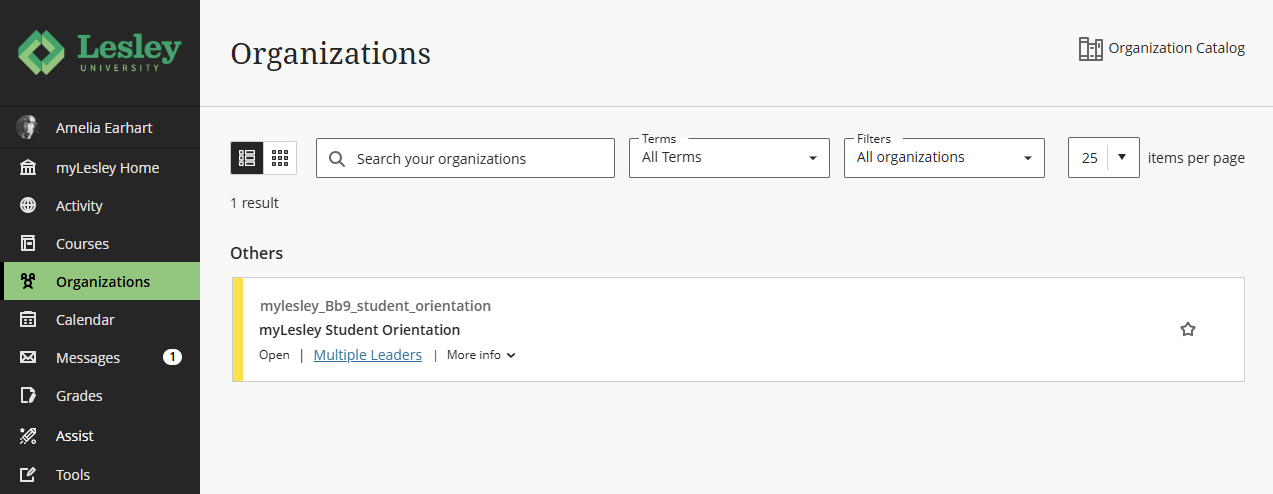
Manage Your Calendars
Click the Calendar link in the base navigation to access your Global Calendar. Your Global Calendar will display all of your calendars and events in one place.
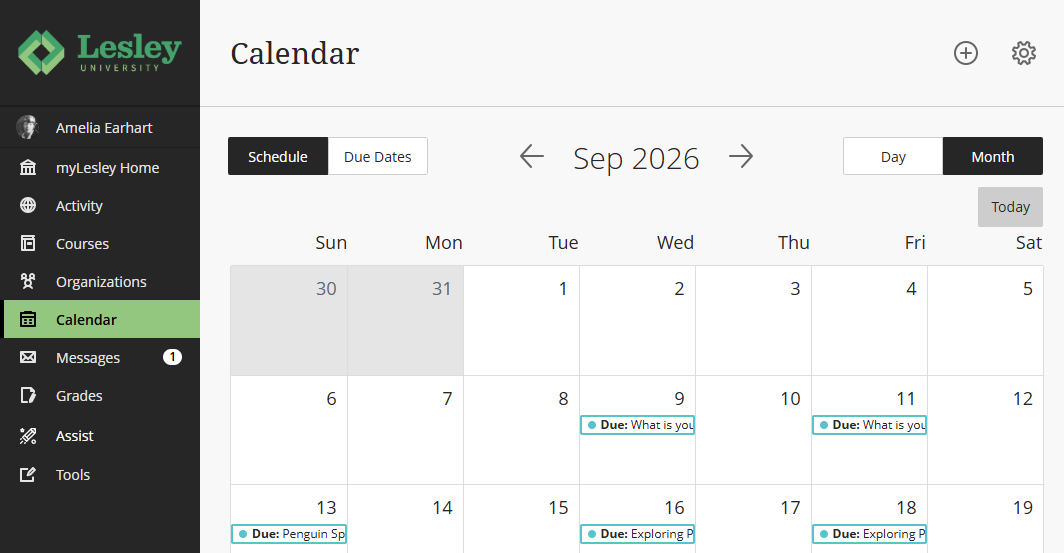
You have a personal calendar and a course calendar (for each active course).
- Personal Calendar: You can add personal events by clicking the Add Event icon. No one else will see your personal calendar.
- Course Calendars: Faculty can add course-specific events such as course meeting times and office hours. Any item with a due date set in the system will appear on your course calendar.
You may choose to view your calendar by Schedule or Due Date and toggle between Day and Month views.
Watch the Manage your Calendar tutorial video for more information.
View and Send Messages
Use Course Messages to send private and secure messages to others in your course, including your instructor, classmates, or group members. You will receive an email copy of all Messages sent to you. You will also see an indicator in your the Messages tab in your Global Navigation as well as within your course to alert you to new messages.
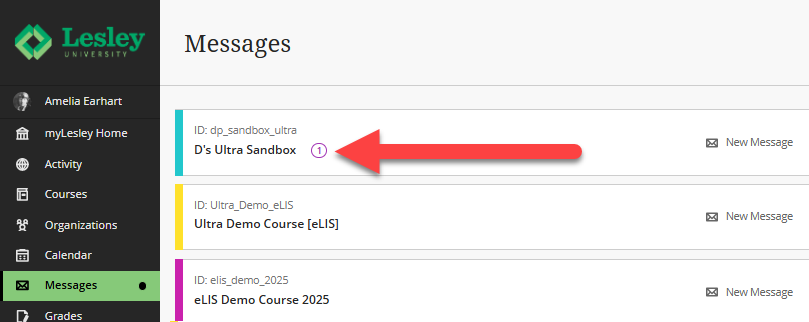
Refer to the Messages support page or watch the Blackboard Messages video tutorial for more information.
The Global Gradebook
Click on the Grades link in the base navigation to access your Global Gradebook. Here, you can view all of your gradebooks across all of your courses. Courses are organized in alphabetical order.
Faculty Gradebook
As an instructor, the Global Gradebook allows you to view a summary of each course's gradebook, including which items are ready to be graded or posted. Courses are organized in alphabetical order.
Click on the Course Activity Related to Grades report (pie chart icon) to view student performance and activity in your course.
Select an item's title to open it, choose a submission, and start grading. To go to a specific course's gradebook, select the course name or click on the View all work link.
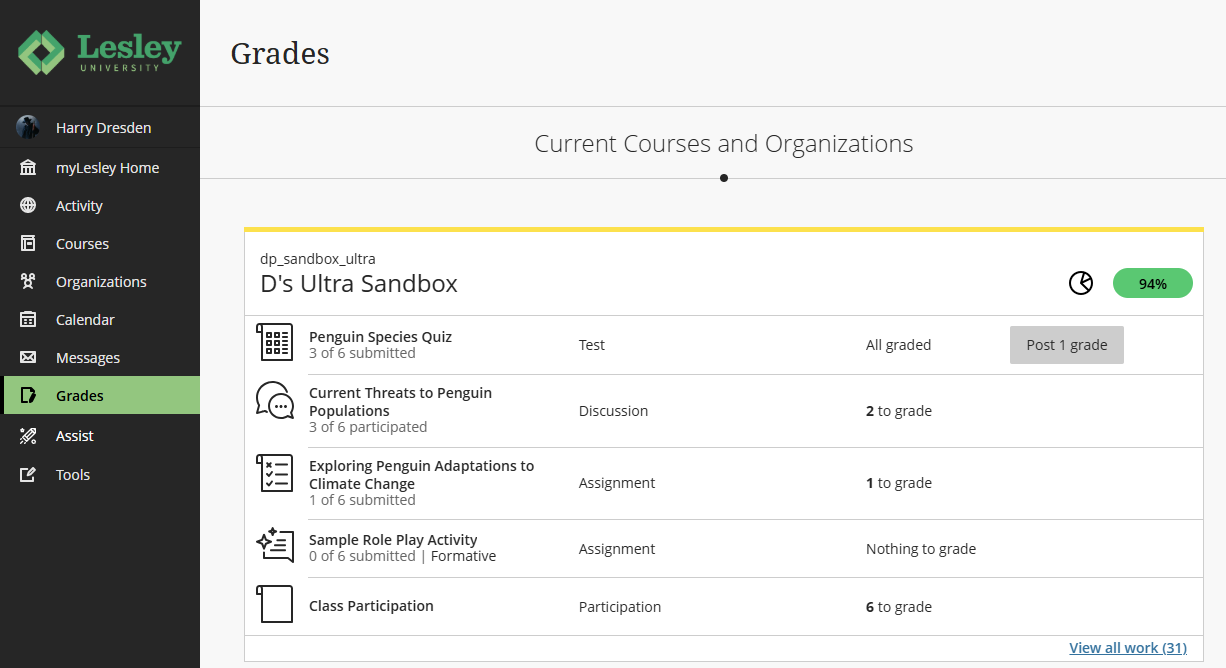
For more information, refer to the Blackboard Ultra Gradebook and Grading support article.
Student Gradebook
As a student, the Global Gradebook allows you to view all of your grades across all of your courses. Courses are organized in alphabetical order.
Click on the How Am I Doing? report (pie chart icon) to review your performance in each course.
Select a course name or click on the View all work link to go to that course's Gradebook.
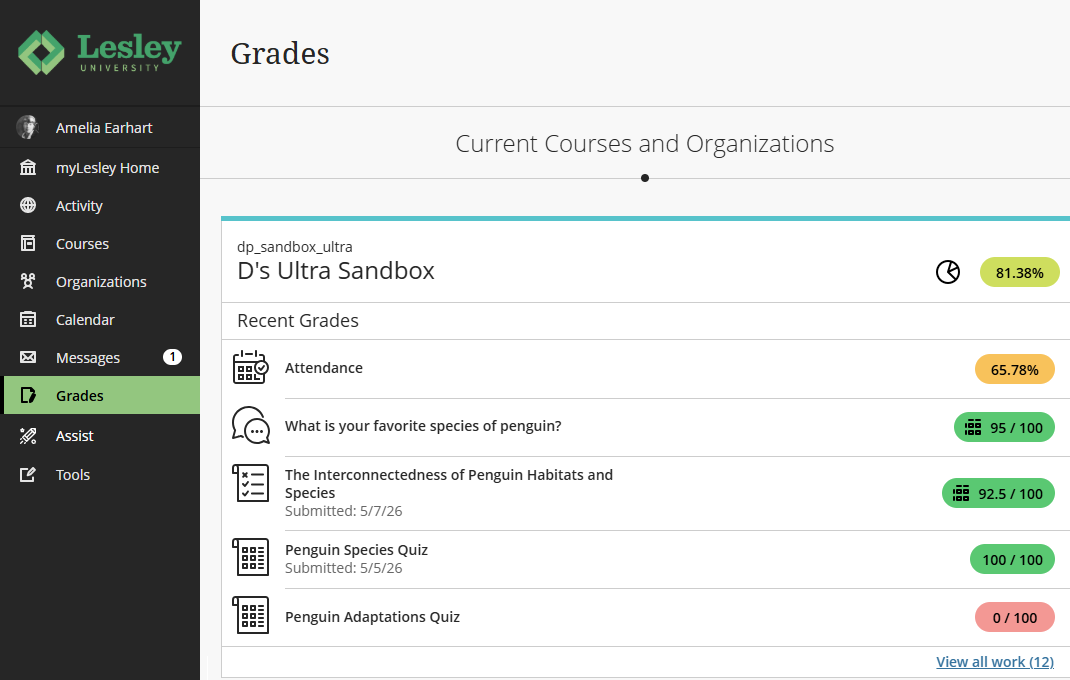
For more information, refer to the View Grades and Feedback support article.
Find Student Resources with Blackboard Assist
Blackboard Assist features campus resources for students. Two services are featured at the top of the page with additional services listed below in alphabetical order.
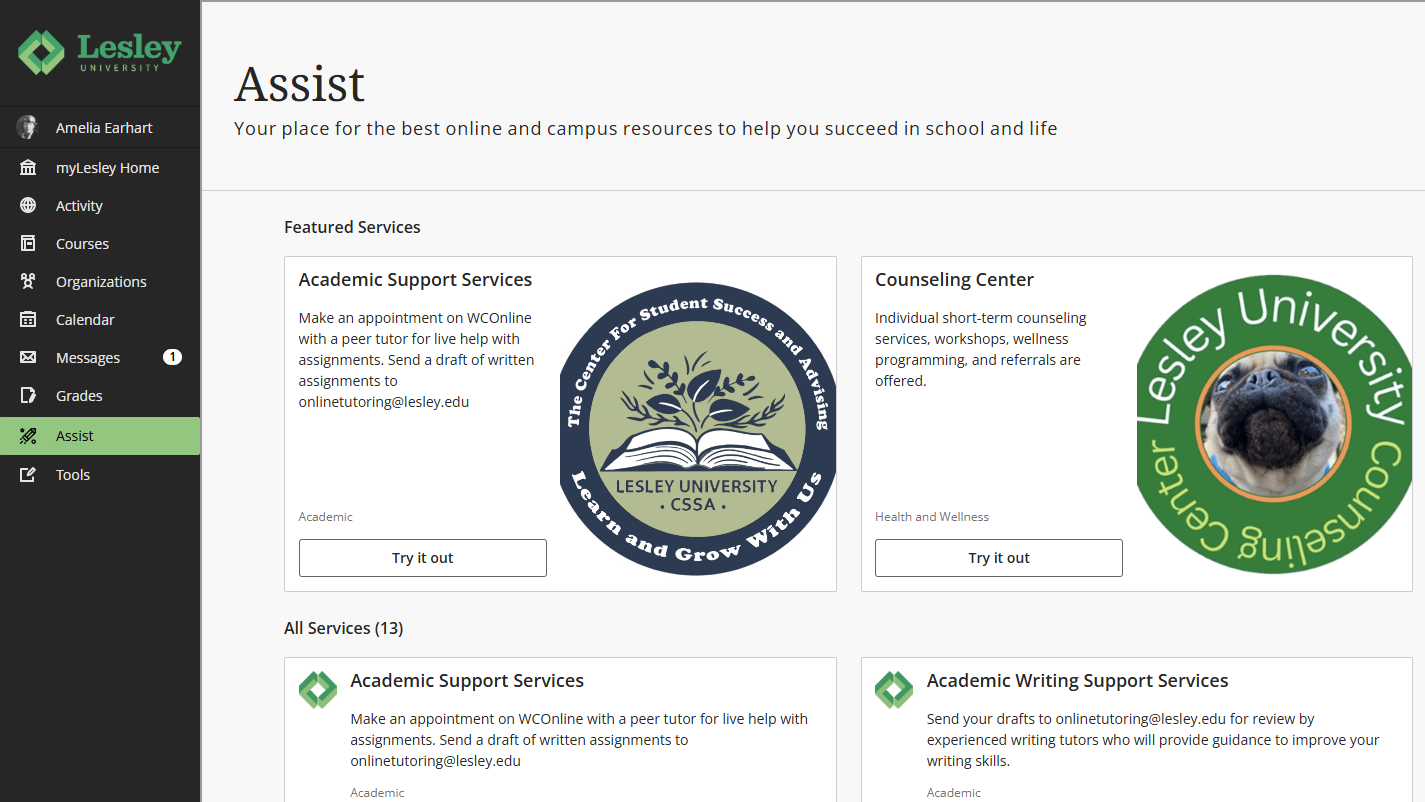
Access Additional Tools
The Tools area is located in the base navigation and provides you with access to global functions that are located outside a course. On this page, you will see tools that you have permission to use, including:
Accessibility in myLesley
Blackboard believes that accessibility is essential for creating inclusive, effective educational experiences. Refer to the Accessibility in Blackboard support article for more information on Blackboard's accessibility features, screen reader information, and how to access alternative document formats.
Training and Support
myLesley training and support is available to all members of the Lesley community.
Faculty Resources
Do you have questions or need assistance with myLesley? These resources will guide you through using myLesley for teaching and learning.
- Faculty Quick Start Guide: The myLesley Faculty Quick Start Guide will walk you through the basics of creating and organizing course content, creating student work and participating, communicating with your students, grading student work, and more.
- Self-Paced Training: Enroll in the Self-Paced Course: Faculty Training for Ultra: This short self-paced tutorial will introduce you to creating content for your Blackboard Ultra course. It should take approximately one hour or less to complete.
- Faculty Office Hours: Stop by our online office hours (no appointment needed) Mondays & Thursdays, 2:00-4:00PM ET: Join Faculty Office Hours.
Student Resources
- Student Quick Start Guide: The myLesley Student Quick Start Guide will walk you through the basics of using myLesley/Blackboard.
- myLesley Student Orientation: The myLesley Student Orientation is a self-paced course designed to prepare you to successfully use Blackboard Ultra. You may be new to online learning, new to Blackboard Ultra, or both. In this course, we will cover the basics of Blackboard Ultra so that you know what it is, how to navigate in it, how to use it to complete your course work, and how it will benefit you.
Create a Ticket
Do you have a question or need specific training? You may submit a ticket on the Support Hub or reach out to us via email at elis@lesley.edu.
When reaching out for support, please provide your Lesley username, your course (if applicable), and describe the problem to the best of your ability. If possible, include a screenshot. This information will help the support staff resolve your issue as quickly as possible.