VoiceThread Discontinuation: June 30, 2026
After careful review, Lesley University has decided not to renew our VoiceThread license beyond the current contract period ending June 30, 2026. Please review the VoiceThread Discontinuation and FAQ support article for a detailed overview of what this change means and how to prepare.
TABLE OF CONTENTS
- Export a VoiceThread
- Download your Exported VoiceThread
- Allow Others to Export Your VoiceThread
- Download Original Media and Comments
Export a VoiceThread
You may export and download any of your existing VoiceThreads to keep for archival purposes or to share with others. Your VoiceThread will be saved as a .mov video format (852x480) and will include all media, comments, and annotations that existed on the live version of the VoiceThread.
Once you export a VoiceThread, you must download it within 90 days. After this period, the export will expire, and you will need to re-export the VoiceThread to obtain another copy.
Note: After June 30, 2026 you will need to purchase export credits in order to export your VoiceThreads.
Export From an Open VoiceThread
From within a VoiceThread, click on the menu in the top right corner of the page. This will open a menu. Select Export.

This will bring you to the Exports page. Click on the Export button to begin the export process.
Exporting can take anywhere from a few seconds to 20 minutes depending on size. You will receive an email notification when your export is complete, but you can also check its status at any time.
Once you export a VoiceThread, you must download it within 90 days.
Export From the Sharing Page
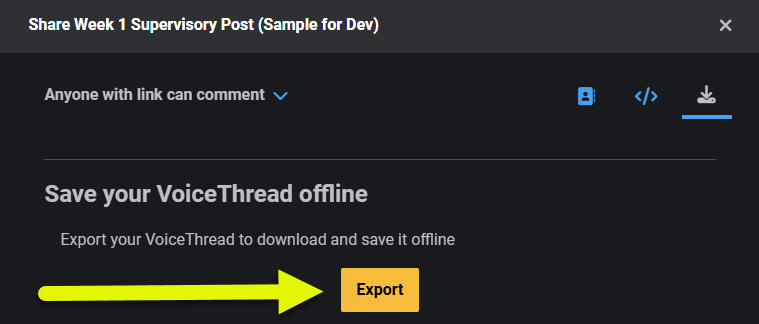
To export your VoiceThread, navigate to the sharing area and click on the export tab at the top of the sharing window. Click on the Export button to begin the export process.
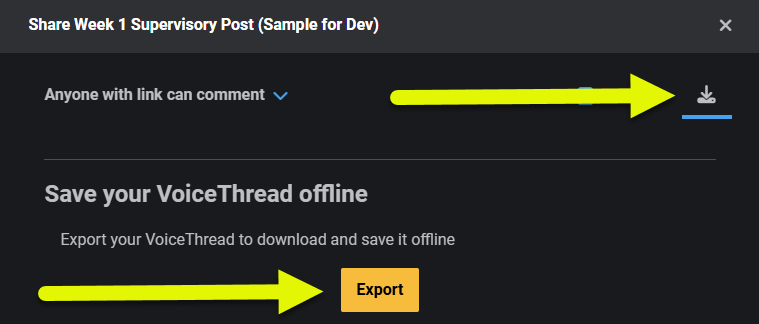
Exporting can take anywhere from a few seconds to 20 minutes depending on the size of your VoiceThread. You will receive an email notification when your export is complete, but you can also check its status at any time.
Once you export a VoiceThread, you must download it within 90 days.
Download your Exported VoiceThread
You will receive an email notification when your export is ready for download, and that email will include a link that takes you directly to the Exports page. You can also access all of your exports at any time from your Account page.
Click on your Account on the top right corner of your VoiceThread Home page. This will open a menu. Select My Account.
This will bring you into your VoiceThread account. Click on the Exports tab. Look for the video you want to download and click on the Download button.
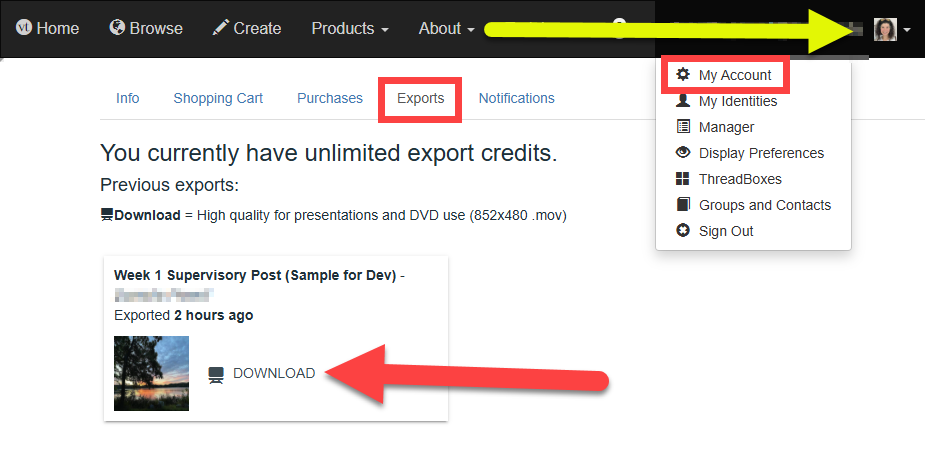
Exports with a status of Waiting or In progress are still processing.
Once you export a VoiceThread, you must download it within 90 days. After this period, the export will expire, and you will need to re-export the VoiceThread to obtain another copy.
Allow Others to Export Your VoiceThread
By default, anyone with whom you have shared your VoiceThread can export it. If you do not want them to be able to do this, you’ll need to edit the settings for your VoiceThread.
From the Home Page, click on the menu icon on the bottom right corner of the VoiceThread. This will open a menu. Click on the Edit button (pencil icon).

From within a VoiceThread, click on the menu button in the top right corner of your VoiceThread. Select Edit.

From the Edit area, click on the Settings button to open your VoiceThread settings.

Scroll down to the Permissions area and select whether or not to allow others to export your VoiceThread. Click Save to save your changes.

Download Original Media and Comments
In some cases, you may wish to download the original media files and voice/video comments from your VoiceThread (ex you want to download and re-use your original slides).
Download Original Media
If you own a VoiceThread, or the creator of the VoiceThread has allowed it, you can download the original media that was uploaded to the slide. These downloads will only contain the original file that was uploaded, not any additional comments or drawings that were made in VoiceThread.
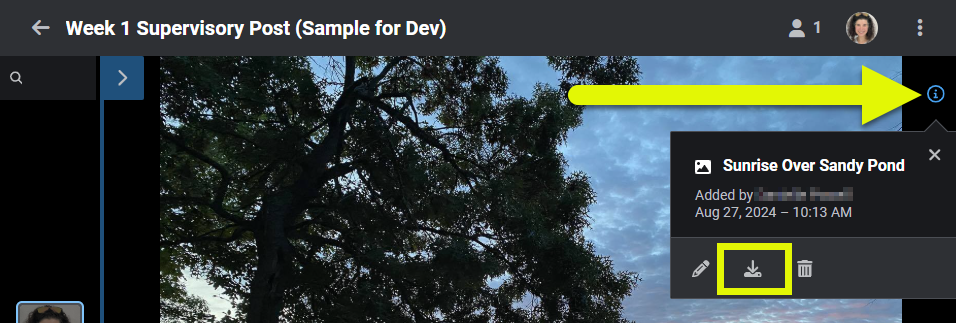
From within a VoiceThread, click on the slide details icon (blue "i") near the top-right corner of the page. This will open a menu. Click the Download button.
Download Comments
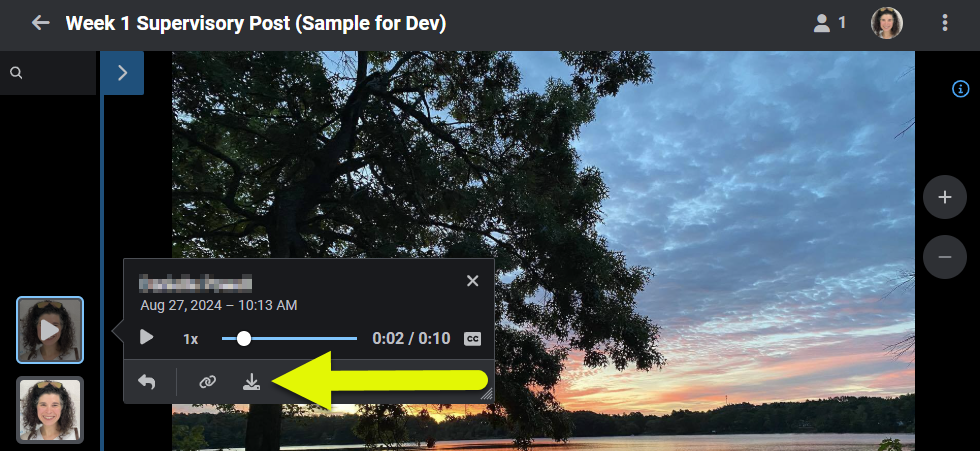
You can download any comment on a VoiceThread you own, and you can download any comment that you have recorded. The downloaded audio (mp3) or video (mp4) file will only contain the recording without any other content from the VoiceThread.
From within a VoiceThread, start playing the comment you want to download. Click on the download media button.
Was this article helpful?
That’s Great!
Thank you for your feedback
Sorry! We couldn't be helpful
Thank you for your feedback
Feedback sent
We appreciate your effort and will try to fix the article