TABLE OF CONTENTS
- Student Learning & Licensure (SLL) Overview
- Link to your SLL Activity in Blackboard/myLesley
- Assess Activities in SLL
Student Learning & Licensure (SLL) Overview
Student Learning & Licensure allows faculty to grade and assess student work on key assignments. Assessment data can then be used for accreditation and program improvement.
The SL&L Instructor Overview video (6:07) will give you a brief overview of SLL from a faculty perspective.
Link to your SLL Activity in Blackboard/myLesley
You may create a link to your SLL activity from your Blackboard/myLesley course. The SLL link will log your students into SLL and take them directly to their assignment. You can optionally create a Gradebook column for this assignment allowing SLL to send your assessment scores back to your myLesley Gradebook.
The Add an SLL Activity to your Blackboard Ultra course tutorial video will walk you through the process.
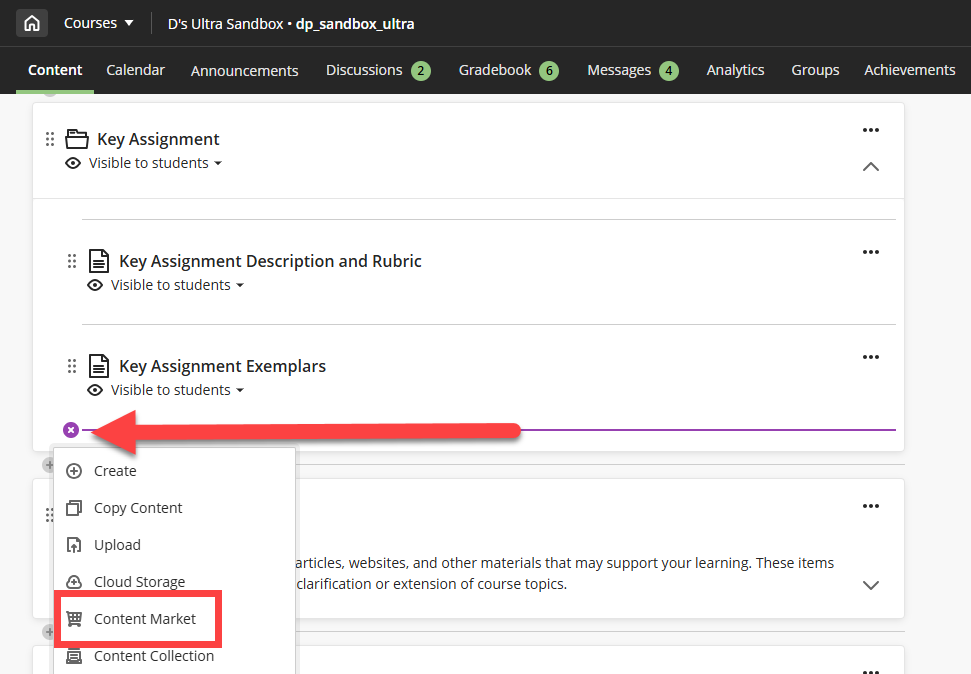
In your course, locate the place where you want to add your activity and click the + icon to open a menu. Select Content Market.
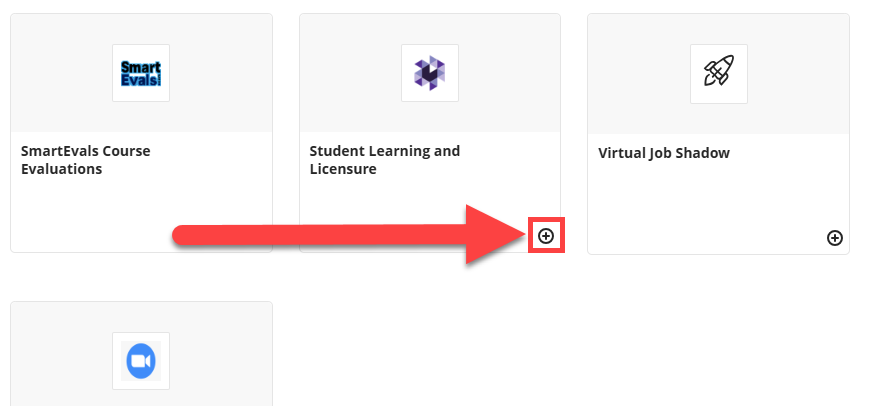
This will bring you to the Content Market. Scroll down Student Learning and Licensure and click on the + button. This will add a link to SLL in your course.
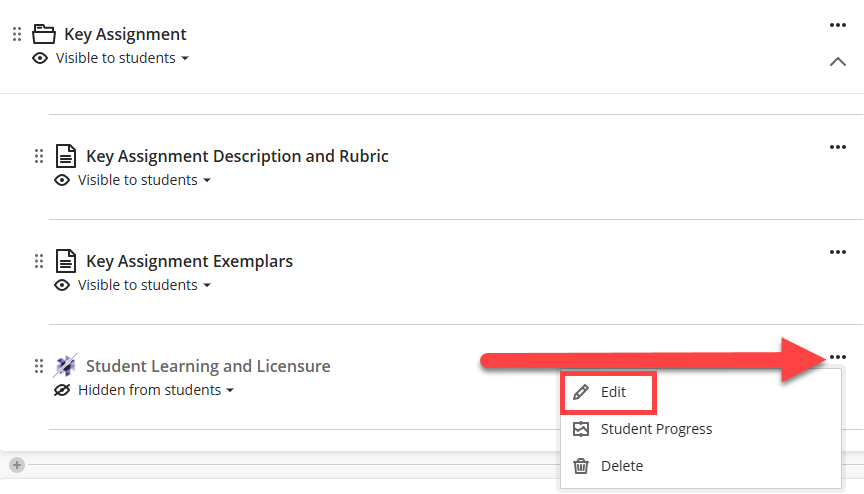
Locate your Student Learning and Licensure link and click the More Options (...) menu. Select Edit.
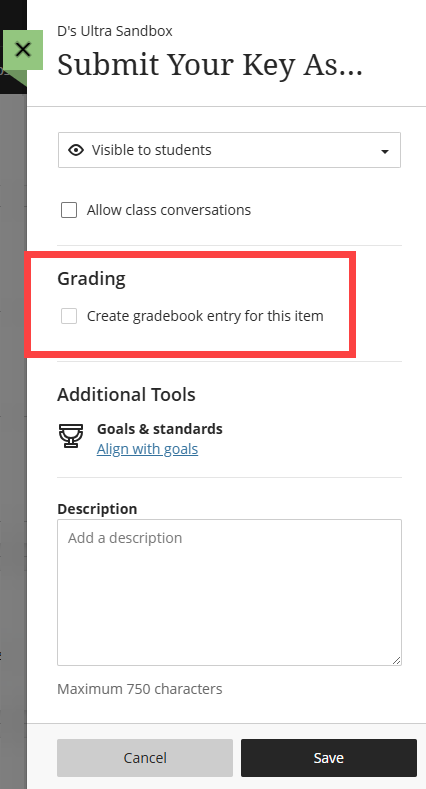
You may rename your link, make it visible to students, and add an (optional) description. Additionally, you may choose to grade the students' submissions within SLL and send the grade back to myLesley. If you would like to do this, click the option to Create gradebook entry for this item. You will then be prompted to enter a due date and grading information. Click Save to save your changes.
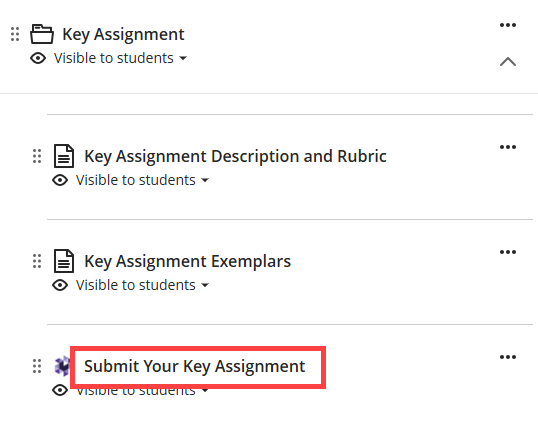
Next, you will connect your specific SLL activity to your myLesley/Blackboard course. Click on the SLL link that you created.
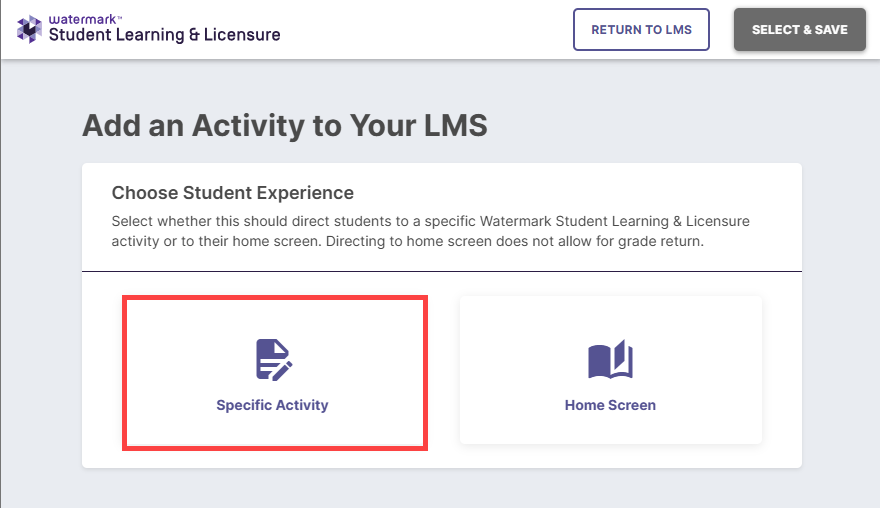
This will bring you into Student Learning & Licensure. Click Specific Activity.
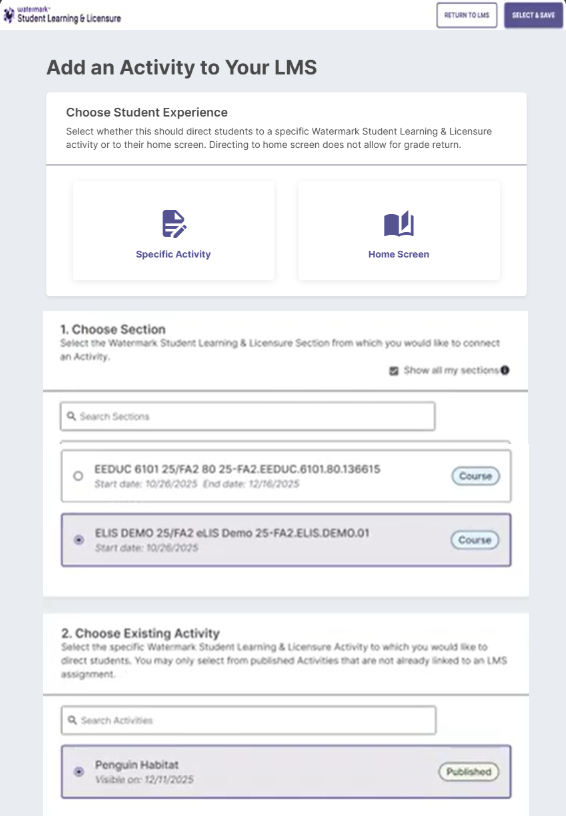
You will be prompted to select a course section and an activity. Once you have finished, click the Select & Save button at the top of the page.
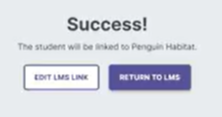
You will see a Success! message. Click Return to LMS.
Assess Activities in SLL
Once students have submitted their activities, you will assess them within SLL. Watch the Assessing Activities in SSL tutorial video or refer to the Assessing Activities in SLL support article for step-by-step instructions.
Was this article helpful?
That’s Great!
Thank you for your feedback
Sorry! We couldn't be helpful
Thank you for your feedback
Feedback sent
We appreciate your effort and will try to fix the article