TABLE OF CONTENTS
- About Discussions
- Create Discussions
- Discussion Settings
- Manage Discussions
- Allow Students to Create Discussions
- View Responses and Search Discussions
- Grade Discussions
- Group Discussions
About Discussions
Blackboard Ultra features robust Discussions that support student engagement and critical thinking. You can create discussions for specific lessons, the course as a whole, and/or create group discussions. You also have the option to grade your discussions and specify due dates and participation requirements.
For more information, refer to the Create Discussions support page or watch the Create Discussions video tutorial.
Create Discussions
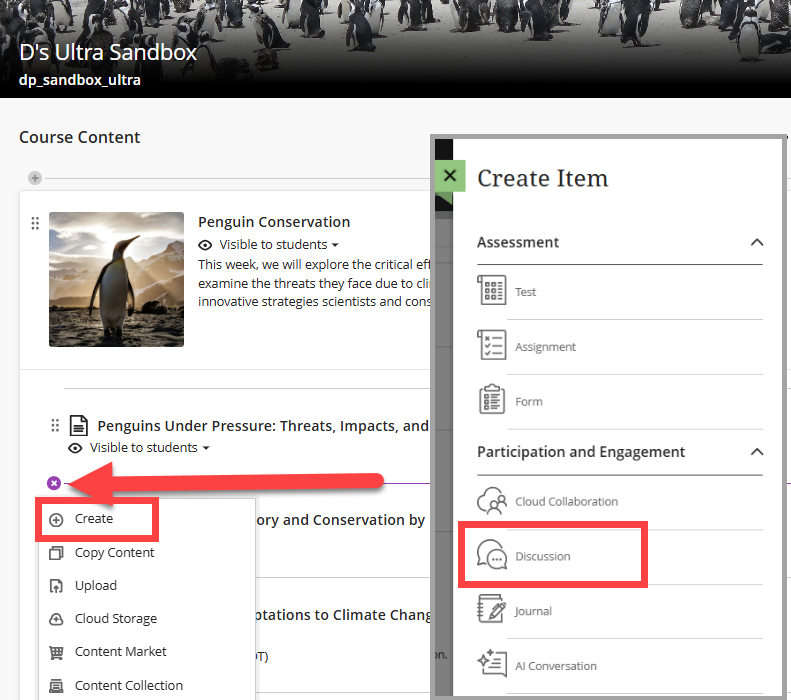
To create a discussion alongside your course content, click on the + button anywhere on your Course Content page, within a Learning Module, or within a Folder. Select Create and then select Discussion.
Give your Discussion a name, select the visibility, and enter a prompt. Use the text/content editor to format your text, add links, images, attachments, and more. Click Save to save your discussion prompt.
Need assistance coming up with a Discussion prompt? Utilize Blackboard AI Design Assistant to Auto-Generate Discussion Prompts based on your course content.
Next, click on the Discussion Settings (gear icon) to add grading and participation information, prevent students from editing published posts, allow anonymous responses, and more.
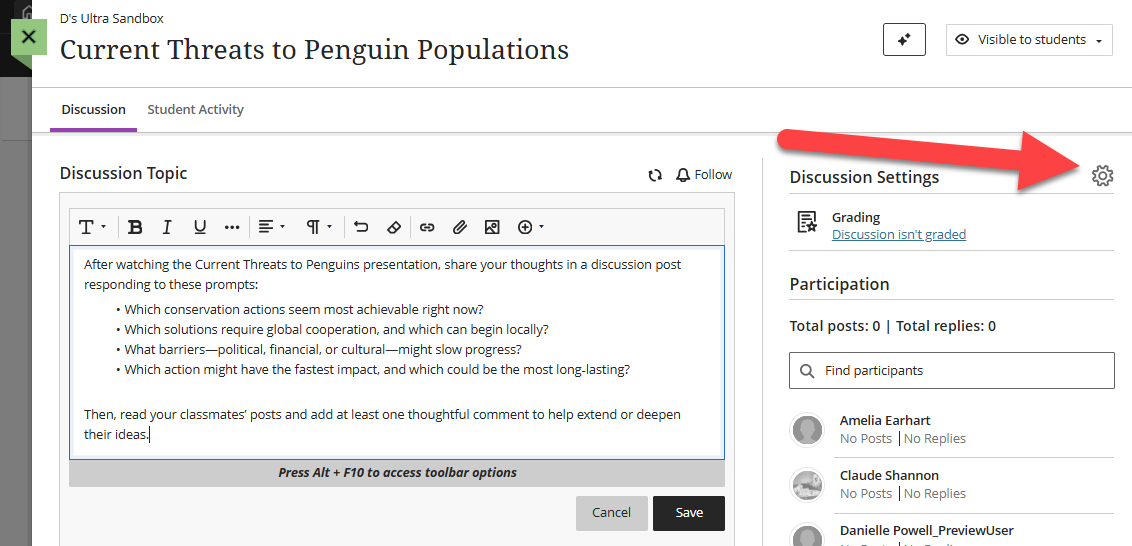
Click Save in the Settings panel to save your changes.
Once you have created your discussion, you and your students may access it from your Course Content page or from your Discussions page.
Discussion Settings
Click on the Discussion Settings (gear icon) to add grading and participation information, prevent students from editing published posts, allow anonymous responses, and more.
Details & Information
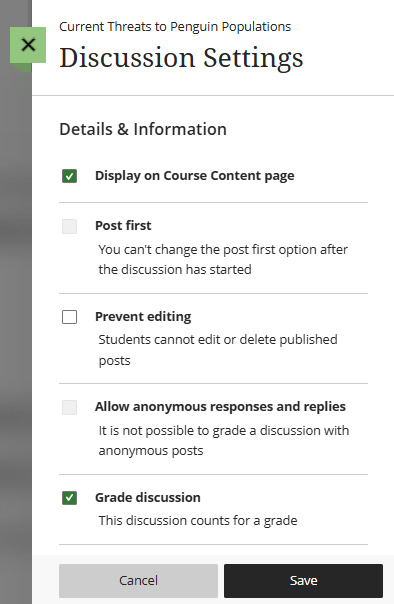 The Details & Information section contains basic discussion details. Additional options will appear in the settings panel depending on the options you select.
- Display on Course Content Page: By default, all discussions appear on the Course Content page, but you can deselect the option if you want students to only view the discussions on the Discussions page.
- Post First: Select Post first to hide discussion activity from students until they have posted their first response.
- Prevent Editing: By default, students can edit and/or delete their published posts. Select Prevent Editing to prevent students from editing or deleting their discussions after posting.
- Allow anonymous responses and replies: You can allow students to post anonymously. Anonymous posts cannot be graded and posts will keep their anonymity even if you turn off the setting.
- Grade Discussion: If your discussion will count for a grade, select Grade Discussion. You can then add participation requirements and due dates, points, attach a rubric, etc.
Grading and Participation
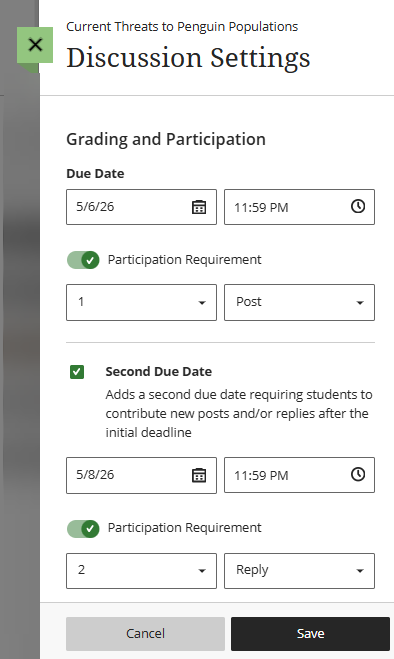 If your discussion will be graded, more options will appear in the settings, including due dates and participation requirements, maximum points, and the option to attach a rubric.
- Due Dates and Participation Requirements: You have the option to include up to two due dates for each discussion, as well as participation requirements. For example, you may ask your students to post their initial response by Wednesday and reply to two peers by Friday.
- Enter the first due date and select a participation requirement (Post, Post or Reply, Reply).
- Then check the box to add a second due date, enter the due date and select a second participation requirement.
- Stop discussion activity after the due date: Selecting this option will prevent students from creating or editing their posts after the due date.
- Grade category: By default, your discussion will be assigned to the Discussion category. You may select a different category or create a custom category in the Gradebook. Refer to the Grade Categories support page for more information.
- Grade using: You may grade your discussion using points, percentage, complete/incomplete, or letter.Refer to the Grading Schemas support page for more information.
- Maximum points: Enter the number of points your discussion is worth (between 0 and 100).
Additional Tools
- Use grading rubric: For more information, watch the Create Rubrics tutorial video or refer to the Rubrics support article.
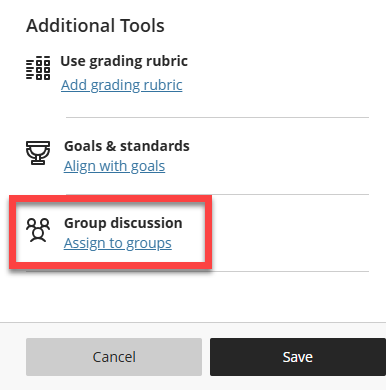
- Assign to Groups: You may create a Discussion and assign it to one or more groups. Refer to the Group Discussions support article for more information and detailed instructions.
Manage Discussions
You have the ability to manage individual discussion as well as the content on the Discussions page.
Manage Individual Discussions
To manage an individual discussion, locate the discussion either from the Course Content page or the Discussions page and click on the More Options (three dots) button to open a menu.
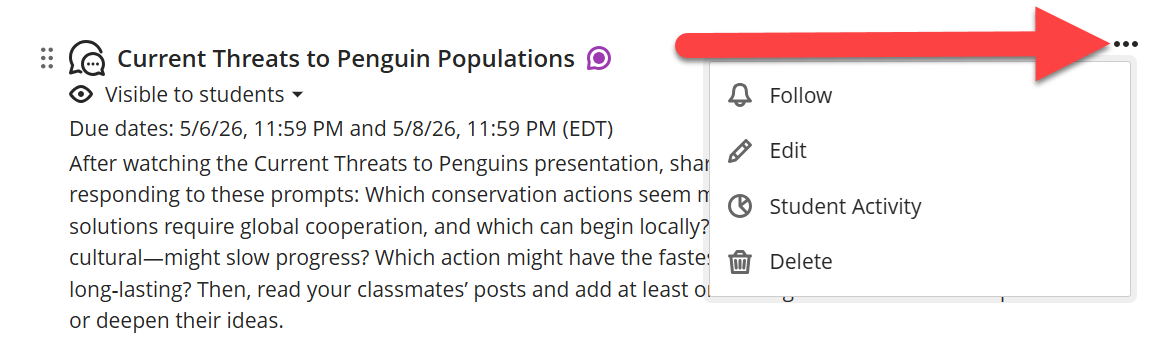
- Follow: This option allows you to follow the discussion and receive notifications of new activity.
- Edit: Select Edit to edit your discussion prompt or modify your discussion settings.
- Student Activity: This will bring you to the Student Activity tab where you will see a summary of your students' discussion participation.
- Delete: Deleting your discussion will delete both the discussion and student posts. If the discussion was graded, it will be removed from the Gradebook and Overall Grade calculation. This action cannot be reversed.
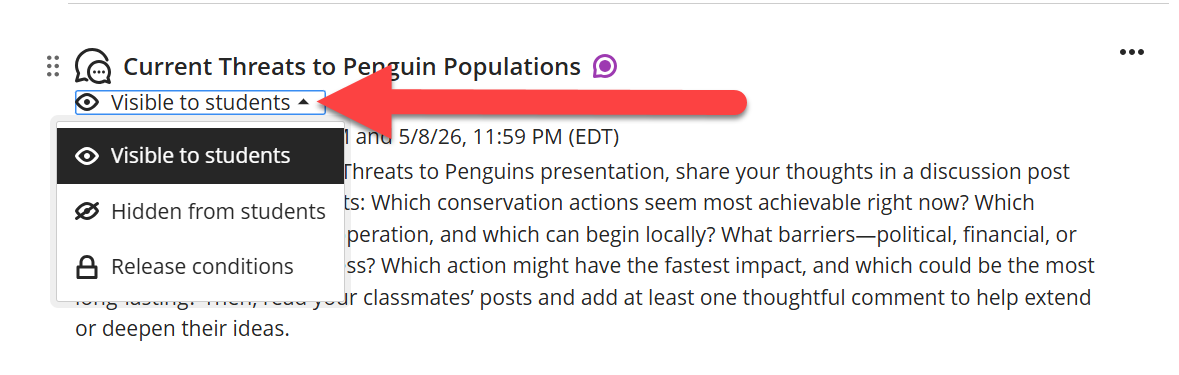
You may also change the visibility of your discussion to make it visible or hidden to students or to set release dates.
Manage the Discussions Page
On the Discussions page, you can organize your content to help students find what they need.
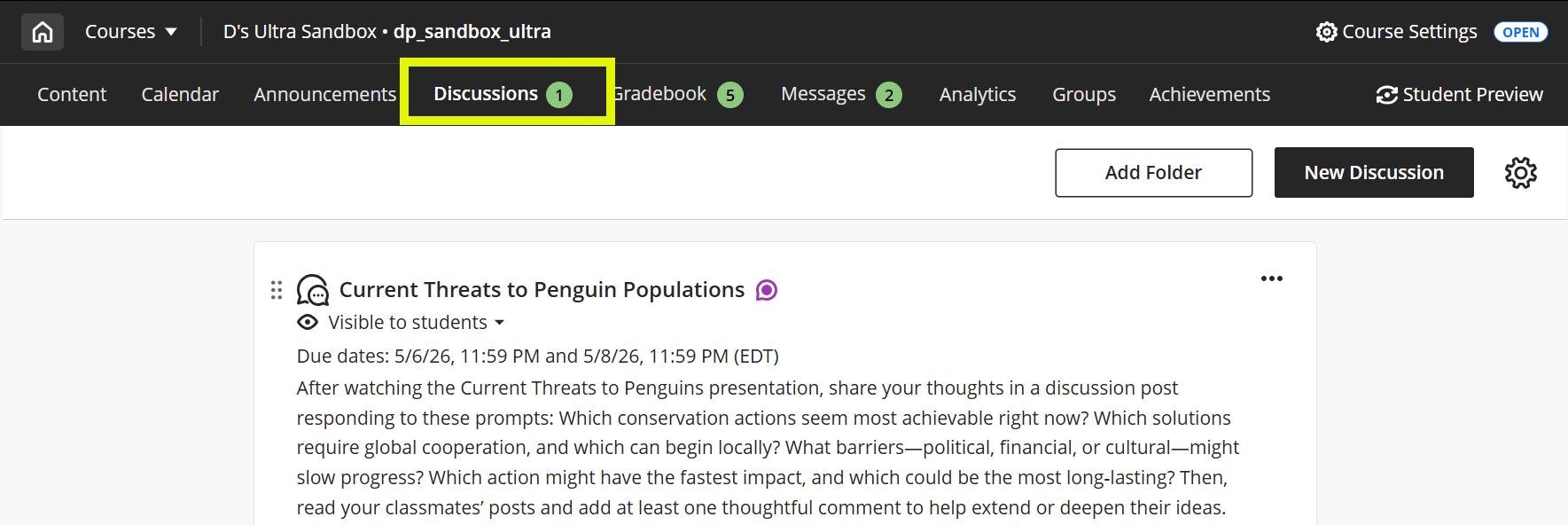
Your discussions will appear on the page in the order in which they were created. You can reorder your discussions by clicking on the Move button (six dots) and dragging your discussion to the desired location on the page.
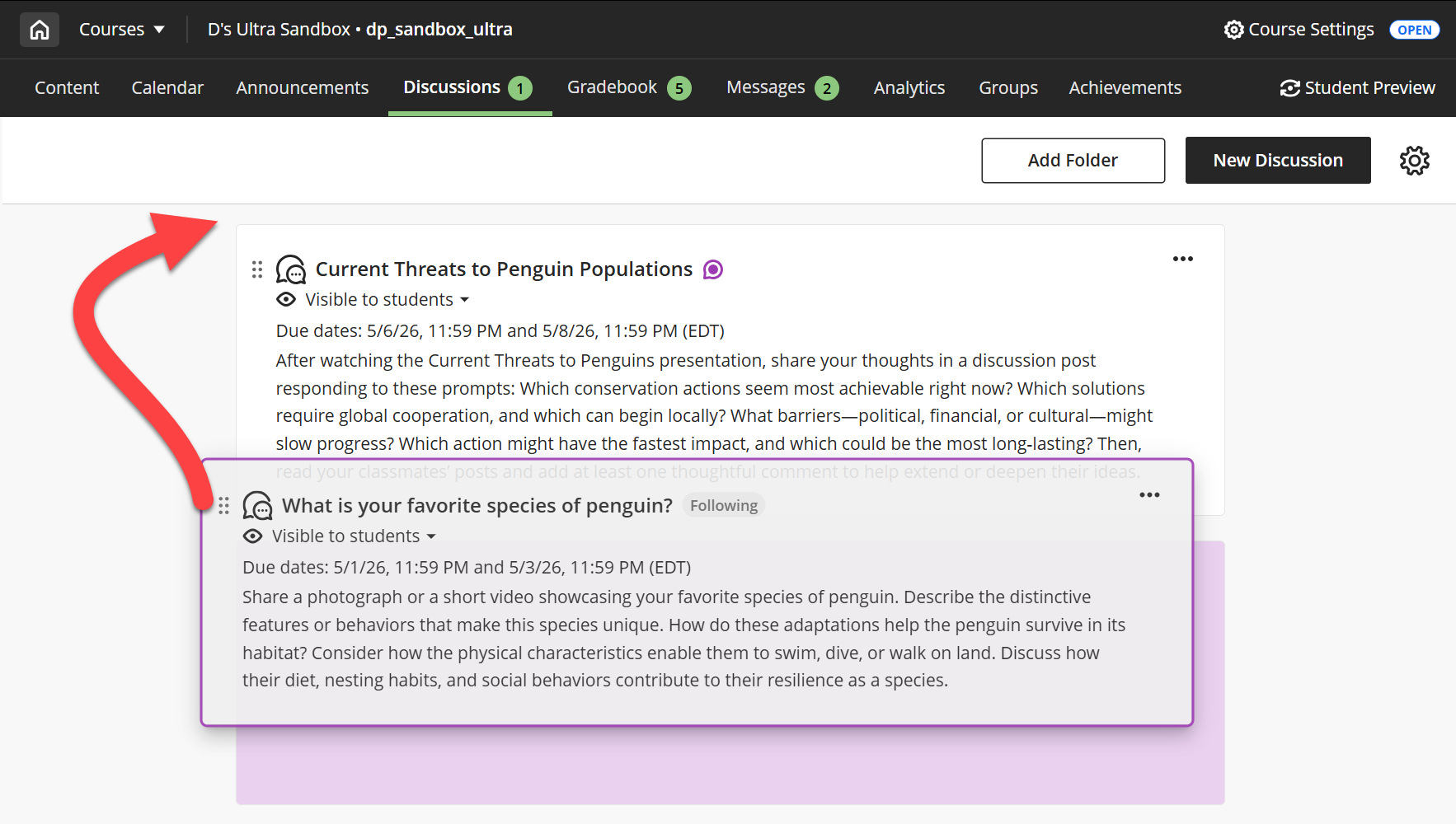
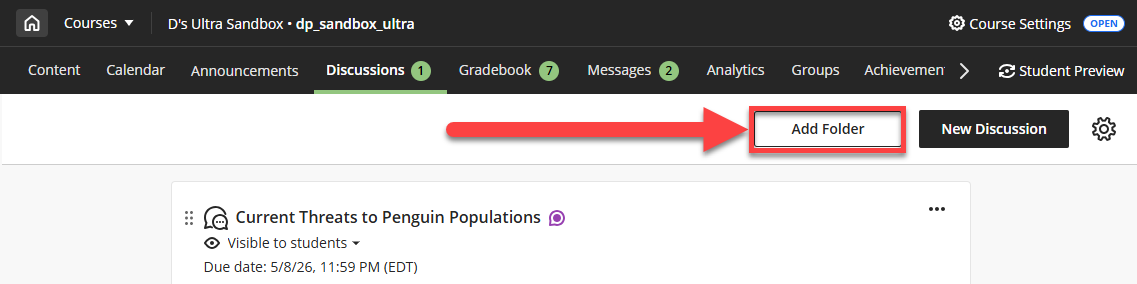
If you have different types of discussions, or discussions on multiple topics, you may want to organize them in Folders. Click Add Folder to create a new folder.
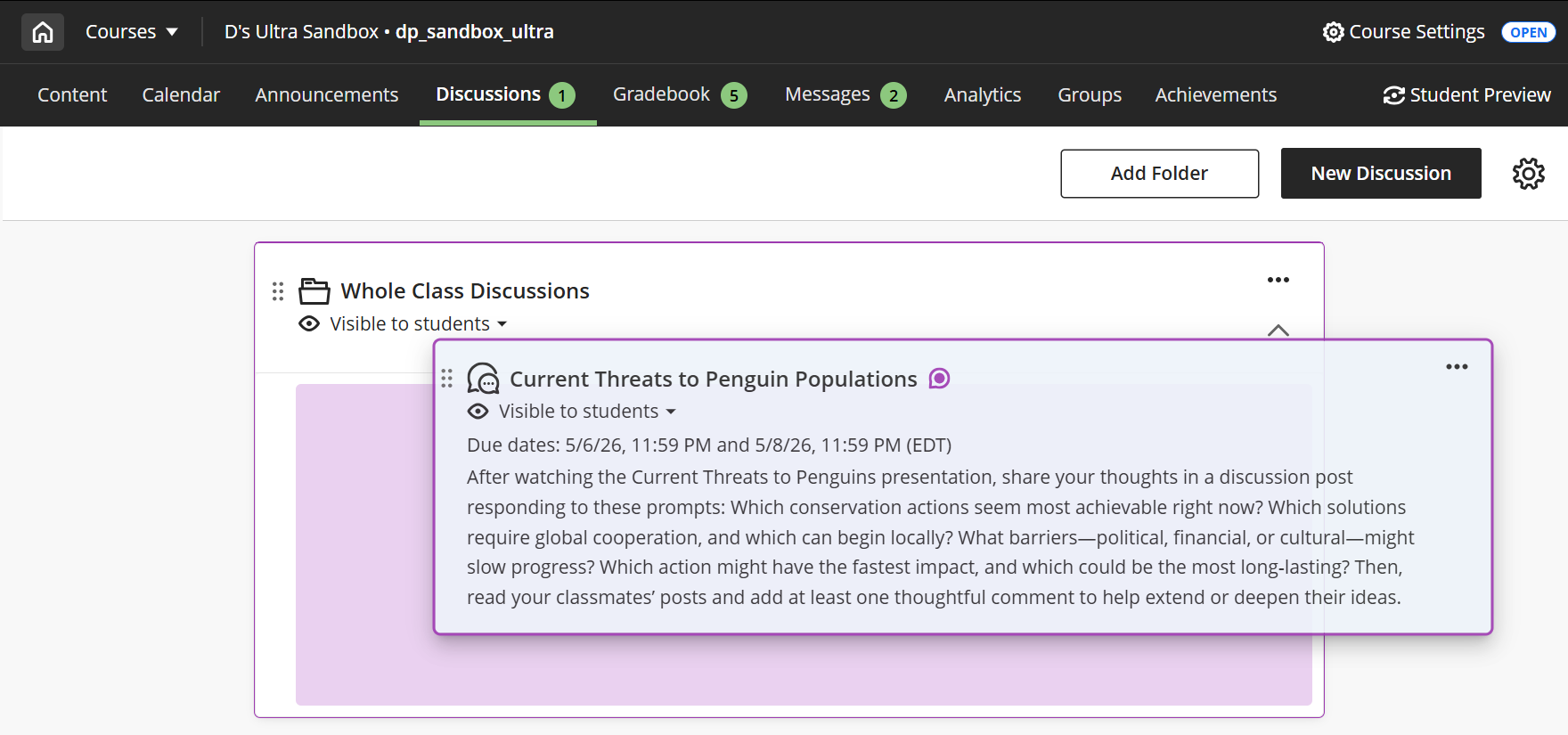
You may then drag and drop discussions into your folders.
Allow Students to Create Discussions
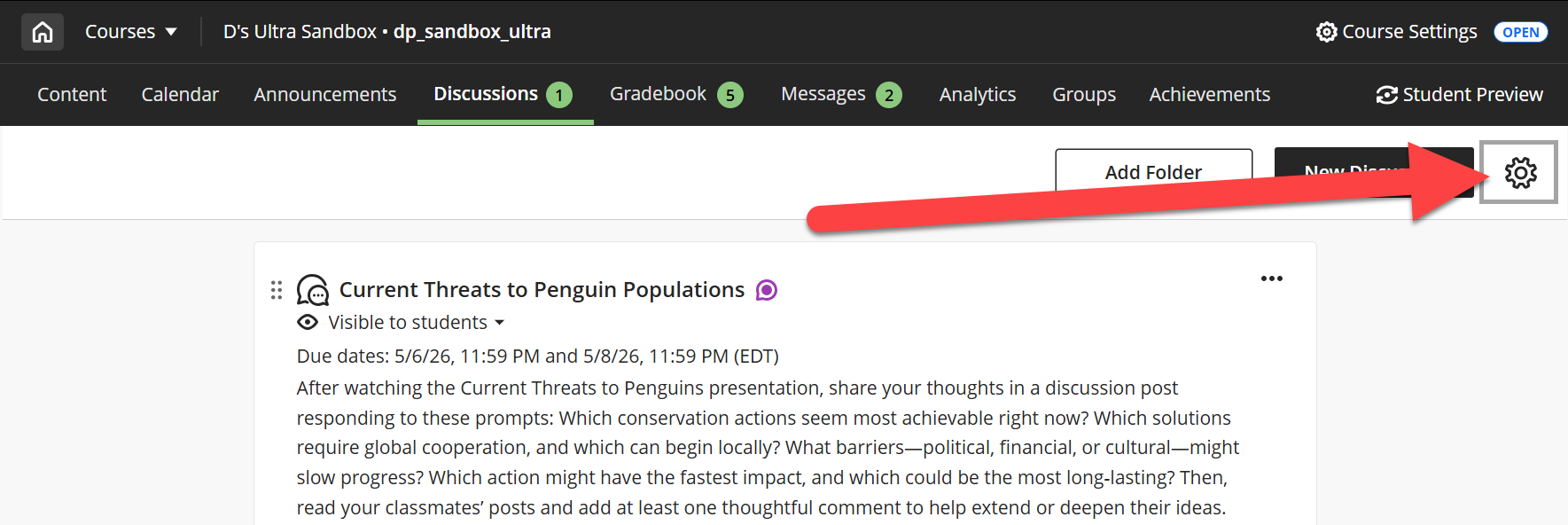
You can allow your students to create discussions for the whole class to participate in. Click on the Settings (gear) icon to open the Settings panel.
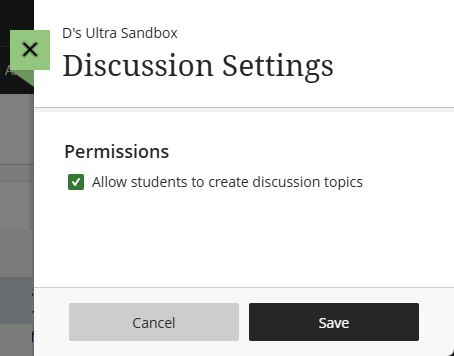
Select the option to allow students to create discussion topics and click Save.
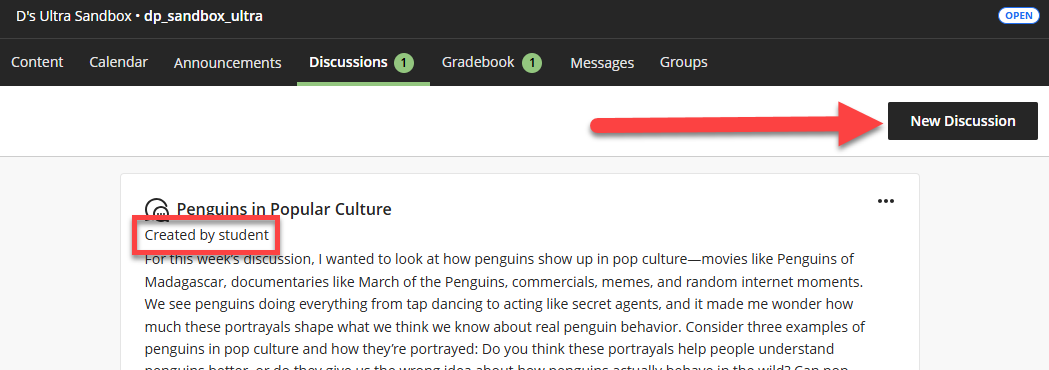
When students go to the Discussions page they will see the option to create a new discussion. All student-created discussions will have a Created by student label attached.
View Responses and Search Discussions
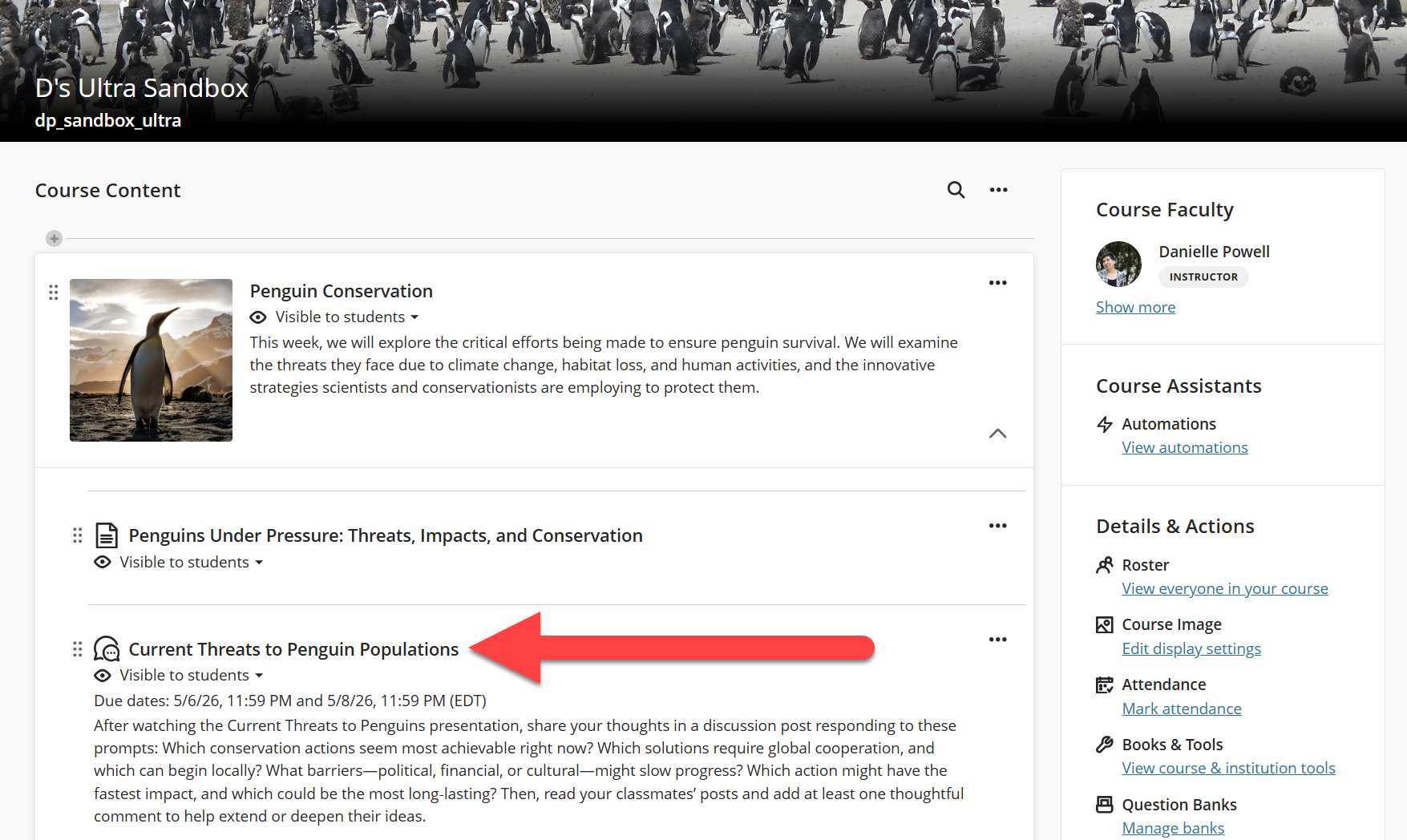
Locate the discussion on your Course Content page or your Discussions page and click the title to open.
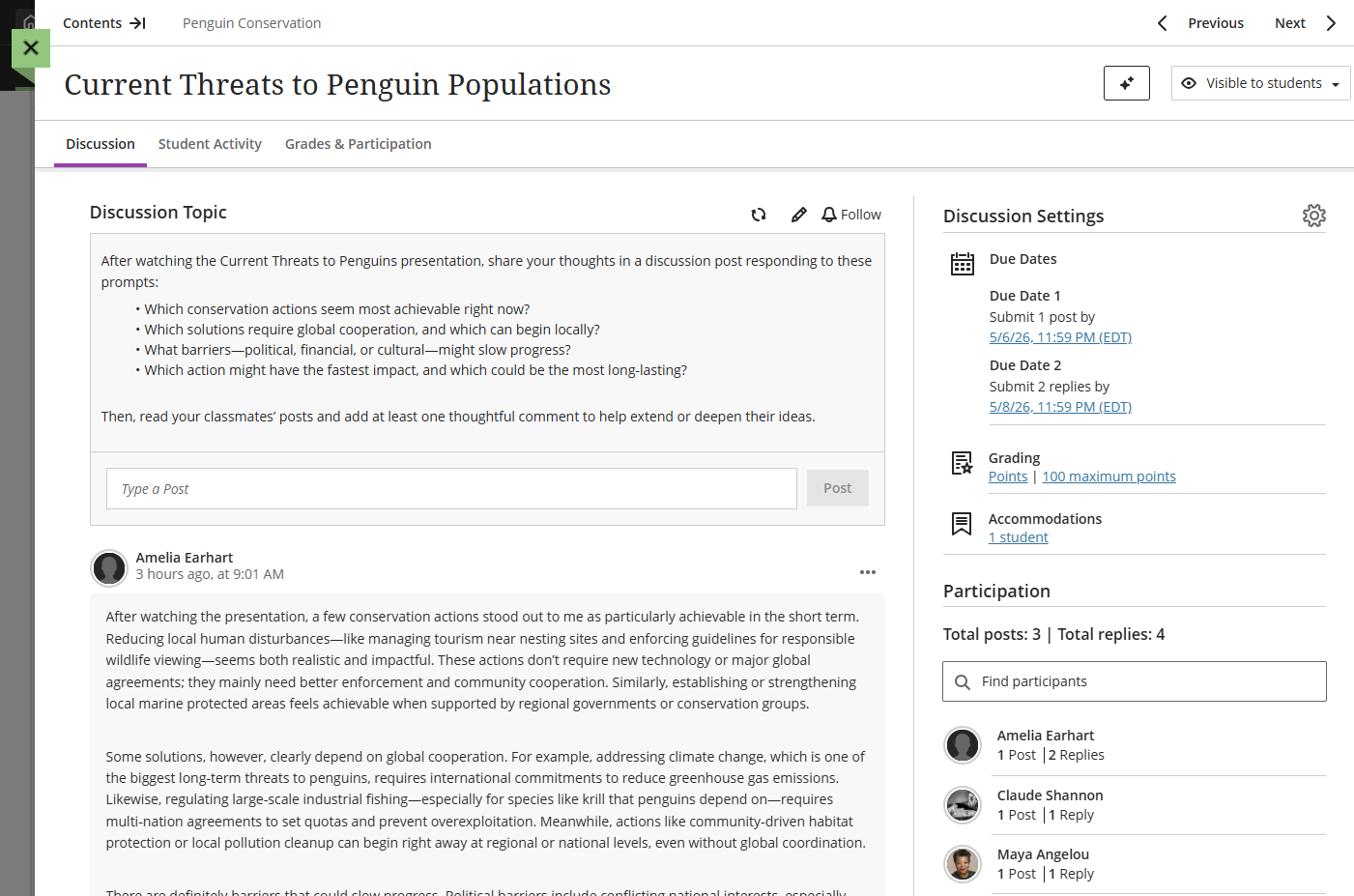
This will open your discussion. You will see your discussion prompt and settings as well as student posts and replies. You may participate in the conversation by typing a post or replying to students. These posts will be visible to everyone in the class.
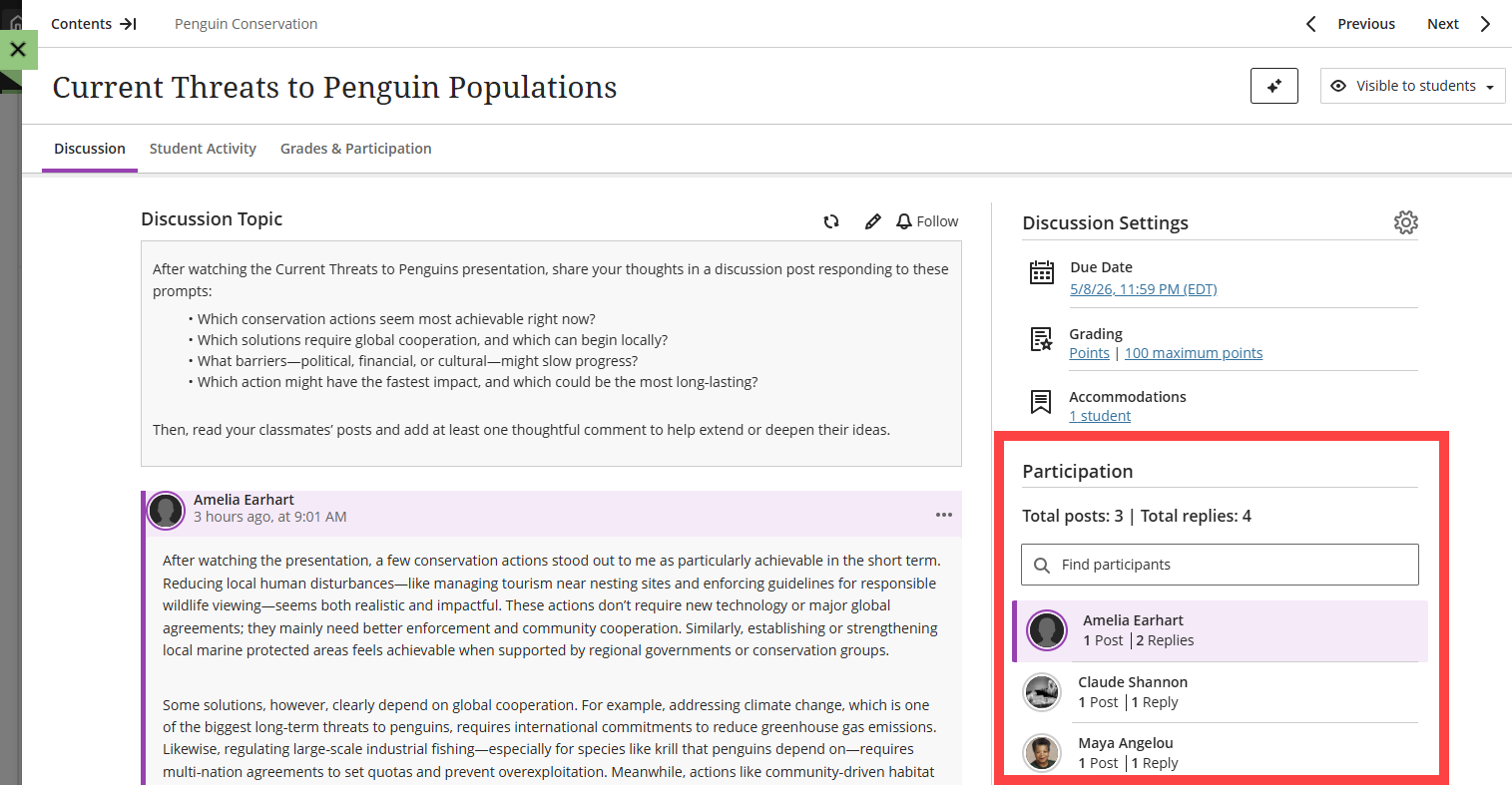
To view a specific student's posts and replies, locate the Participation panel on the right side of the page. Select a student to filter the discussion and view their content (highlighted in purple).
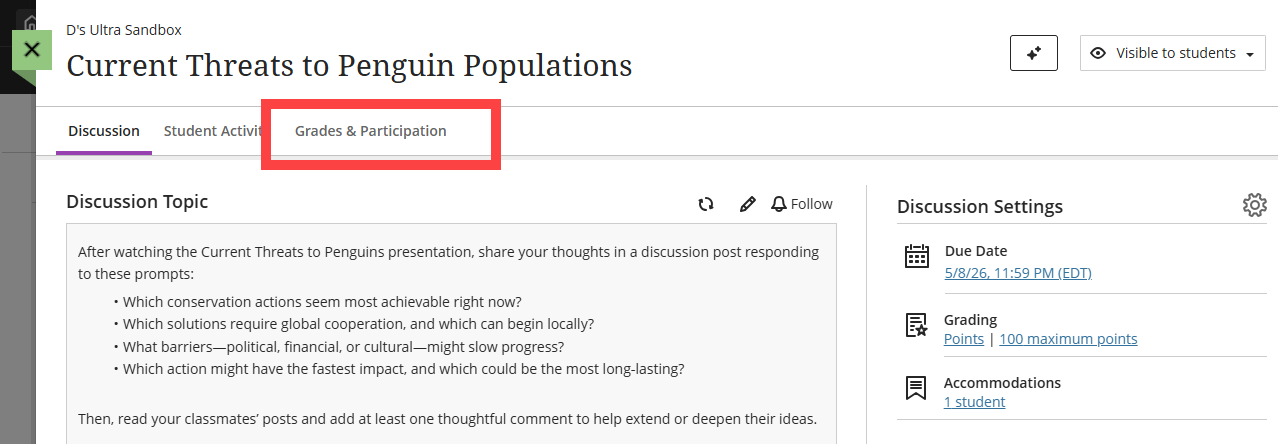
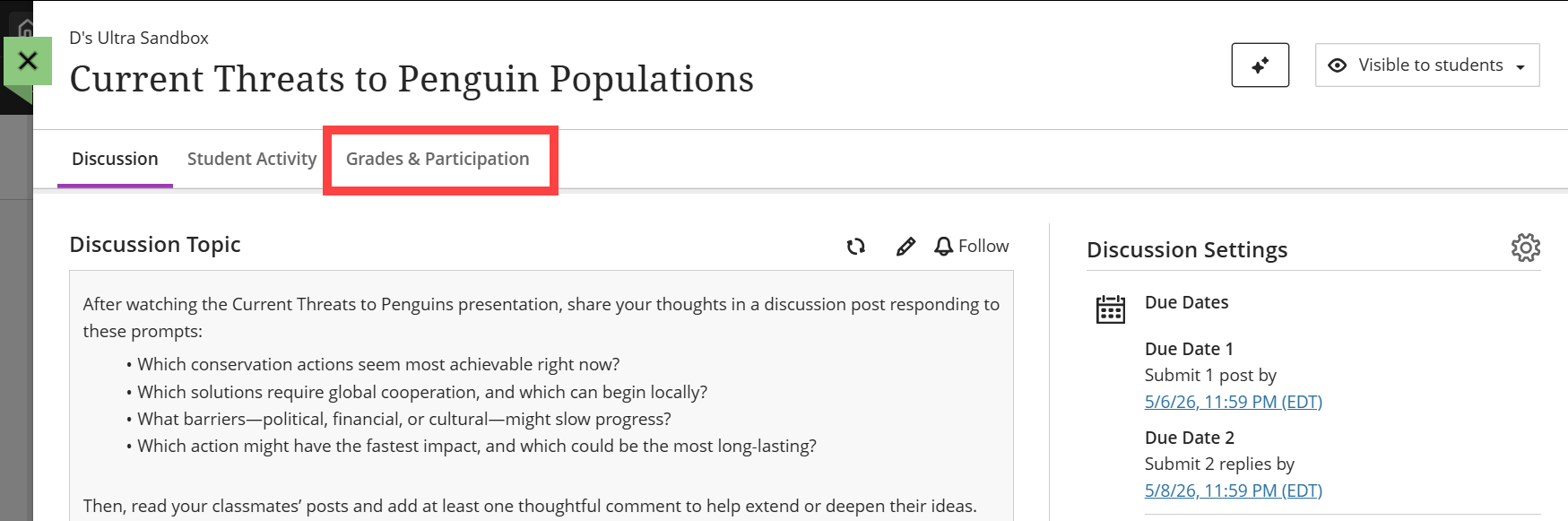
If you will be grading your discussion, click on the Grades & Participation tab to begin grading student work.
Grade Discussions
In graded discussions, students receive a grade based on their total contribution, not each individual post and reply.
For additional information and detailed instructions, refer to the Grade Discussions support article or watch the How to Grade Discussions tutorial video.
Discussion Grade Settings
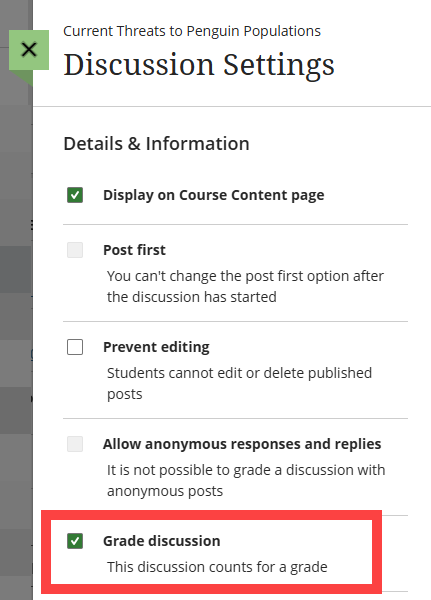
By default, discussions are not a graded activity. If you would like to grade your discussion, go into the Discussion Settings and select Grade Discussion. Once selected, you will see additional settings, including due dates and participation requirements, maximum points, and the option to attach a rubric.
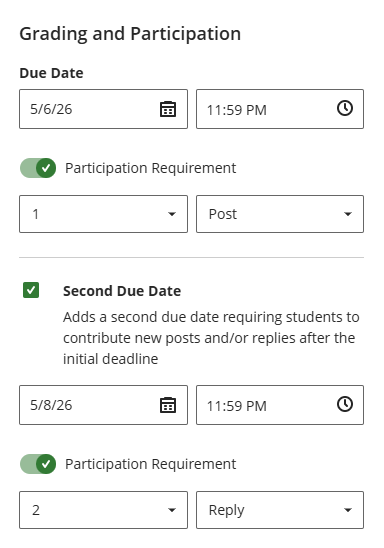
Next, scroll down to the Grading & Participation section. You have the option to include up to two due dates for each discussion, as well as participation requirements.
For example, you may ask your students to post their initial response by Wednesday and reply to two peers by Friday.
- Enter the first due date and select a participation requirement (Post, Post or Reply, Reply).
- Then check the box to add a second due date, enter the due date and select a second participation requirement.
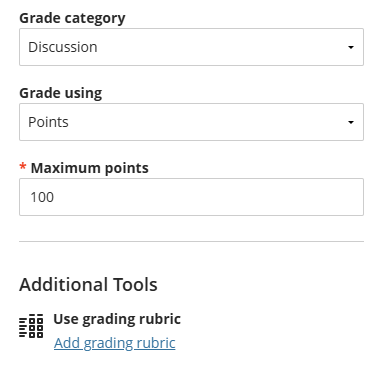
Next, select a Grade category. By default, your discussion will be assigned to the Discussion category in the Gradebook. Then decide whether you want to grade using points, percentage, complete/incomplete, or letter and enter the maximum number of points for your discussion (between 0 - 100). If you plan to grade with a rubric, click Add Grading Rubric to create or generate a grading rubric.
Grade Student Work
Once your students post their discussion responses and replies, you can begin grading. Discussions are graded from the discussion's Grades & Participation page. You may access this page from three areas:
- From Base Navigation: Click on Grades to access your Global Gradebook, locate your course, and select the discussion you want to grade.
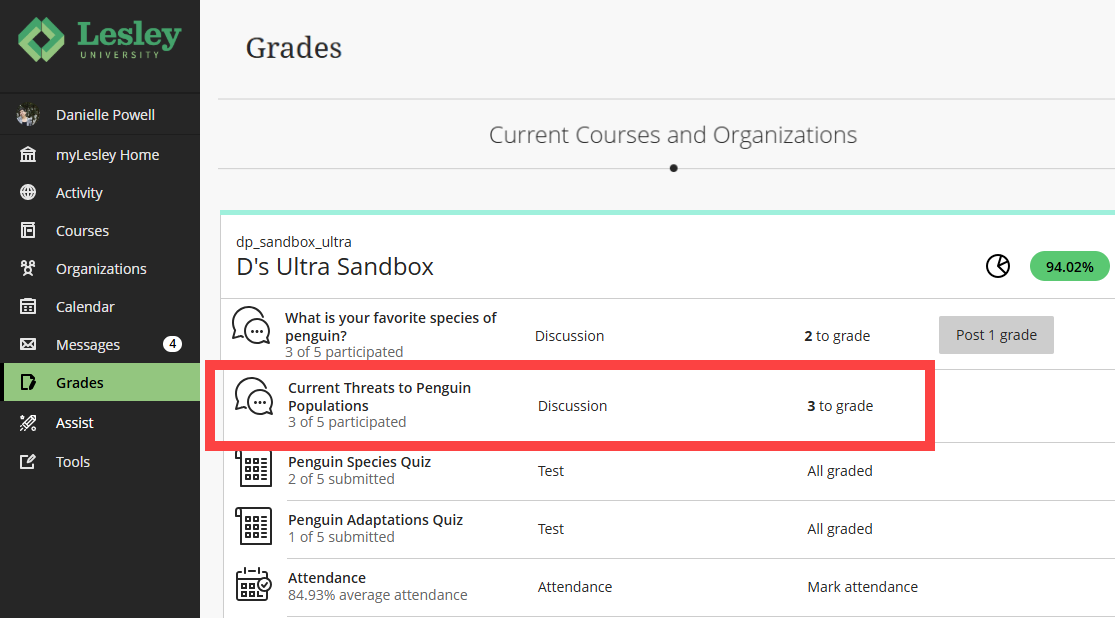
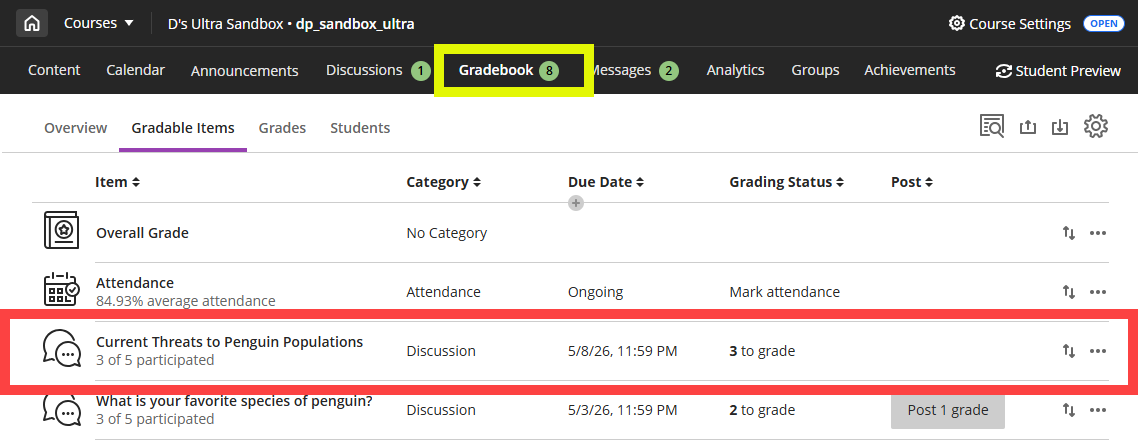
- From your course Gradebook: Click on the Gradebook tab in your course and locate your discussion. You may access it from the Gradable Items view or the Grades view.
- From within your discussion: Open your discussion and click on the Grades & Participation tab.
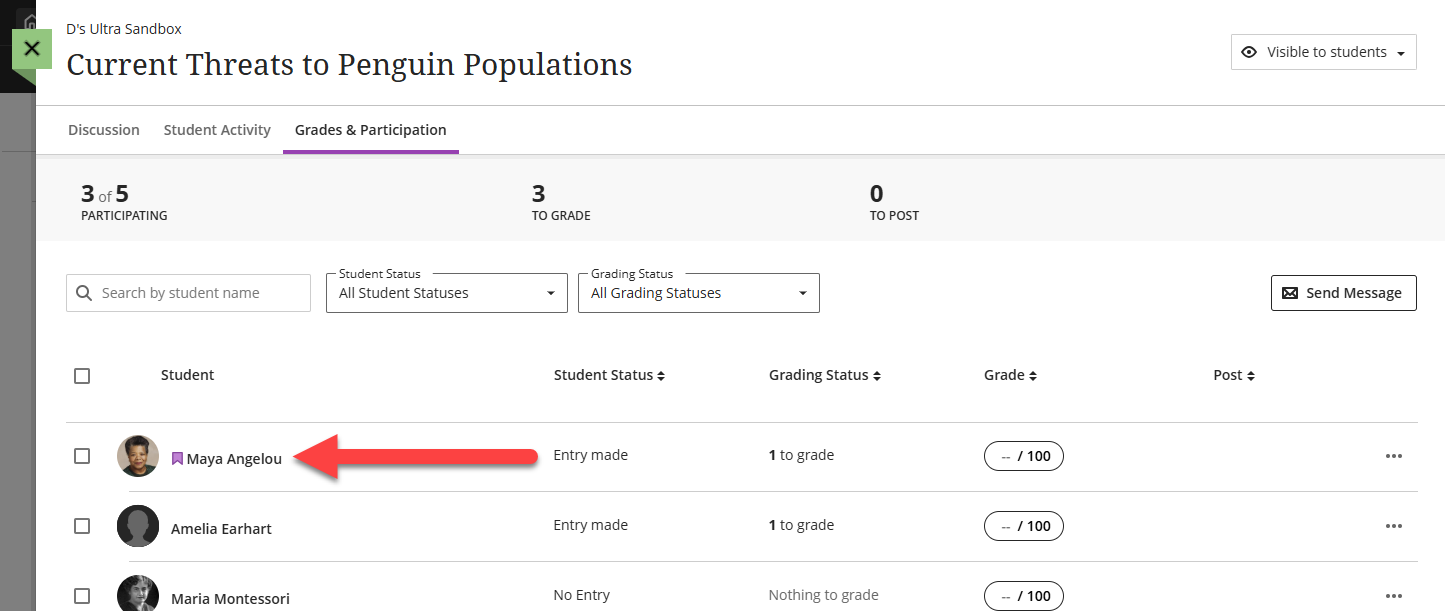
Once you arrive on the Grades & Participation tab, you will see a list of all of the students in your course, whether they have participated in the discussion, their grading status, and their grade. Click on a student's name to begin grading their work.
Your student's posts and replies are highlighted so that you can read their contributions in context. You will also be able to view a discussion analysis highlighting the student's participation, sentence complexity, and critical thinking level.
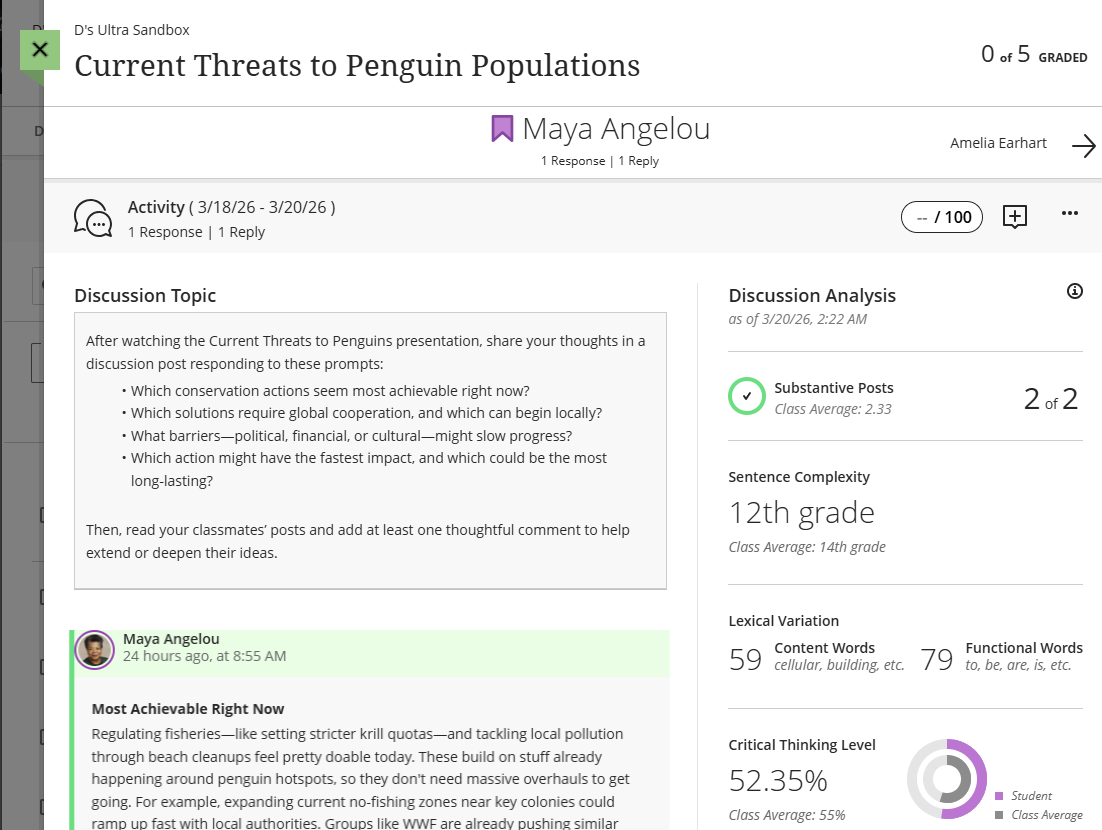
To grade the discussion, click on the grade pill at the top of the page and enter the student's grade.

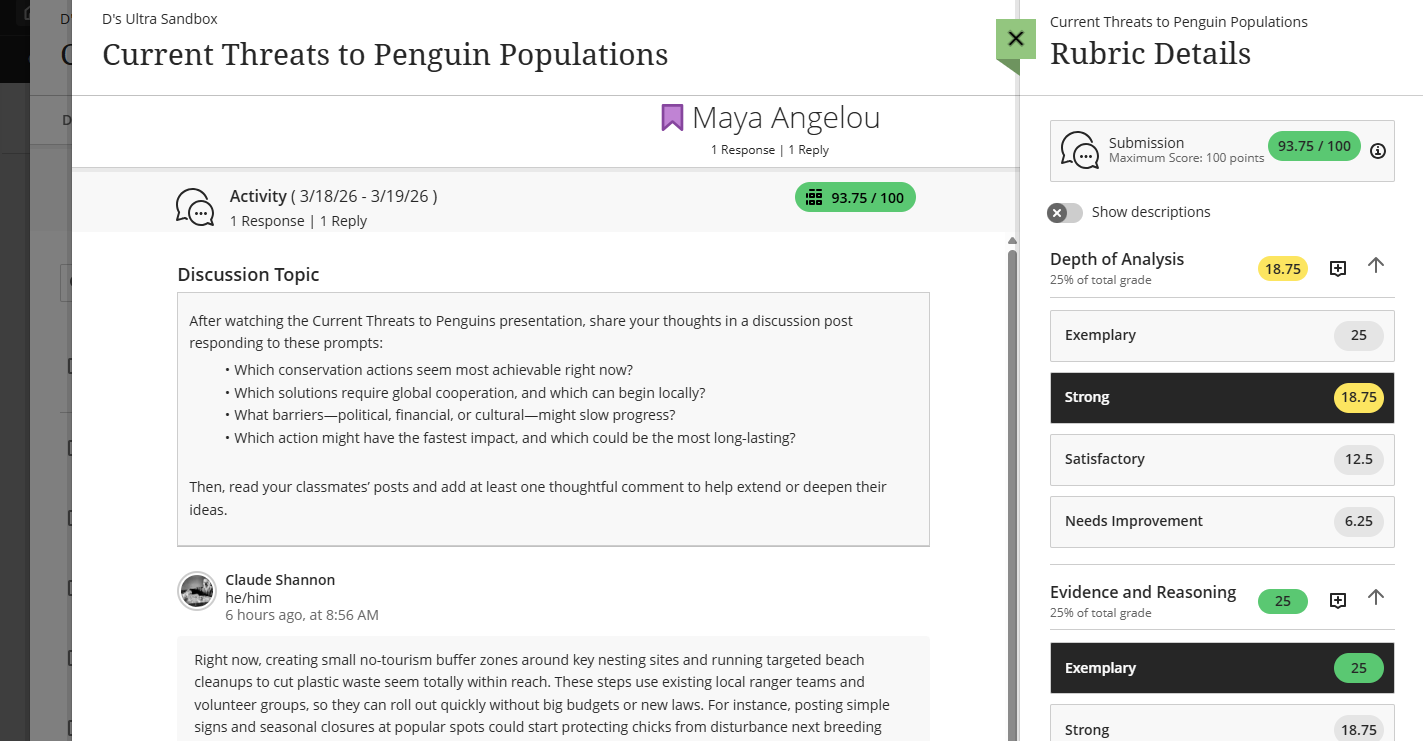
If you are grading with a rubric, clicking on the grade pill will open the Rubric Details panel. Assign a performance level to each criterion by selecting the desired score pill. The grade will update automatically. Refer to the Grade with Rubrics support page for more information and detailed instructions.
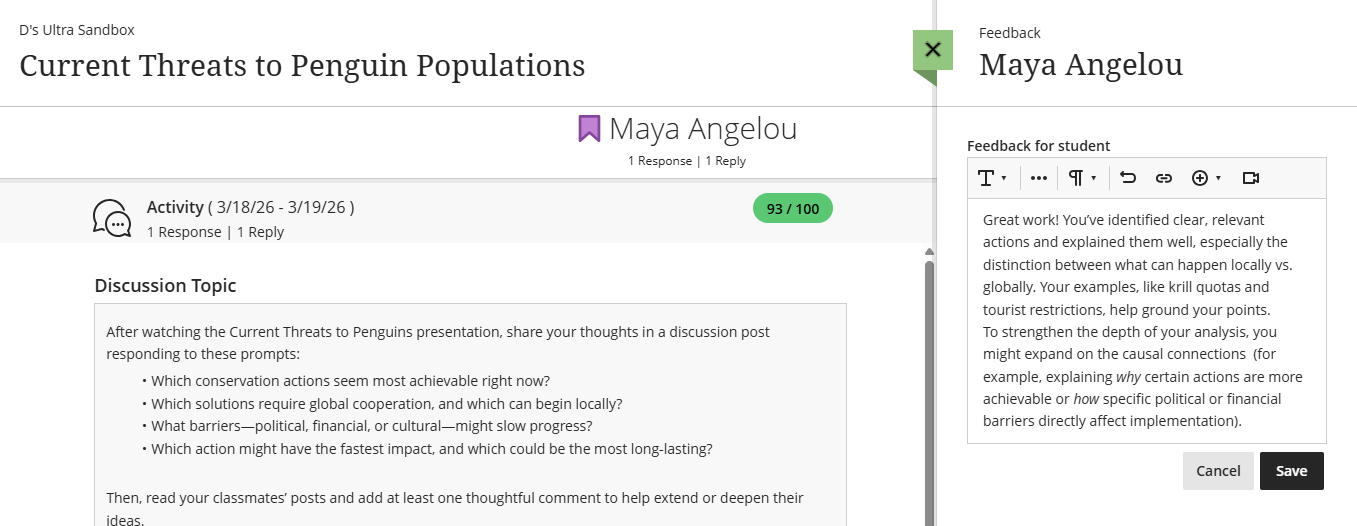
To provide feedback to your student, click on the Feedback icon (+) at the top of the page.

This will open the Feedback panel. Enter your feedback and used the text/content editor to format your text, add a link or attachment, etc. All feedback will remain private between you and the student.
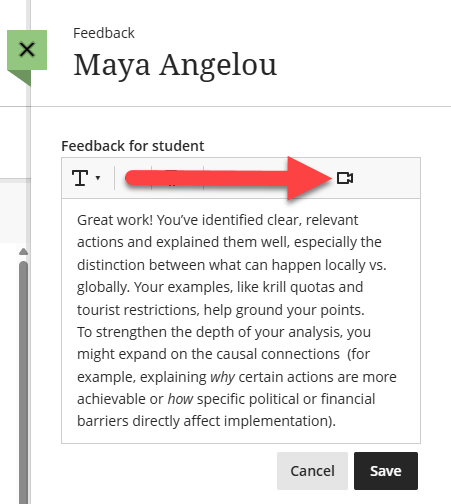
Use the Record Audio and Video Feedback option to add a video or audio recording of your feedback. Students can watch or listen to your feedback alongside any text you include.
Click Save to save your changes.
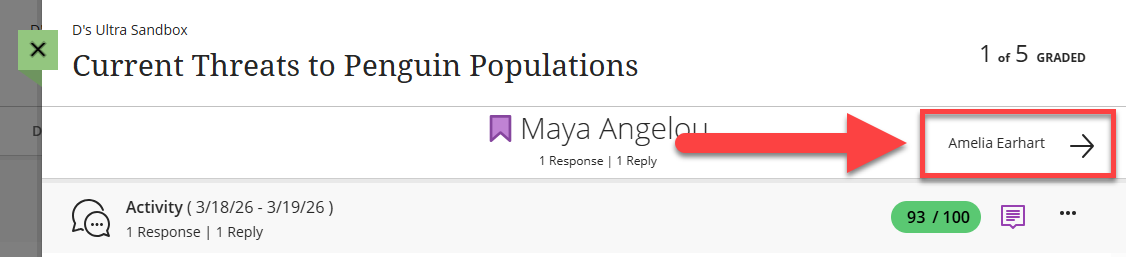
Once you have finished grading the student, you may click on the arrow at the top of the page to grade the next student. Or click on the green X to close the window and return to the Grades & Participation page.
Group Discussions
You can assign your Discussion to groups, allowing students to work together in a more private setting. With Group Discussions you can allow for smaller conversations, assign different discussion topics to each group, or simply provide a place for student collaboration on a larger group project. If you are grading the Group Discussion, you assign grades and provide feedback to each of the students individually.
Create Group Discussions
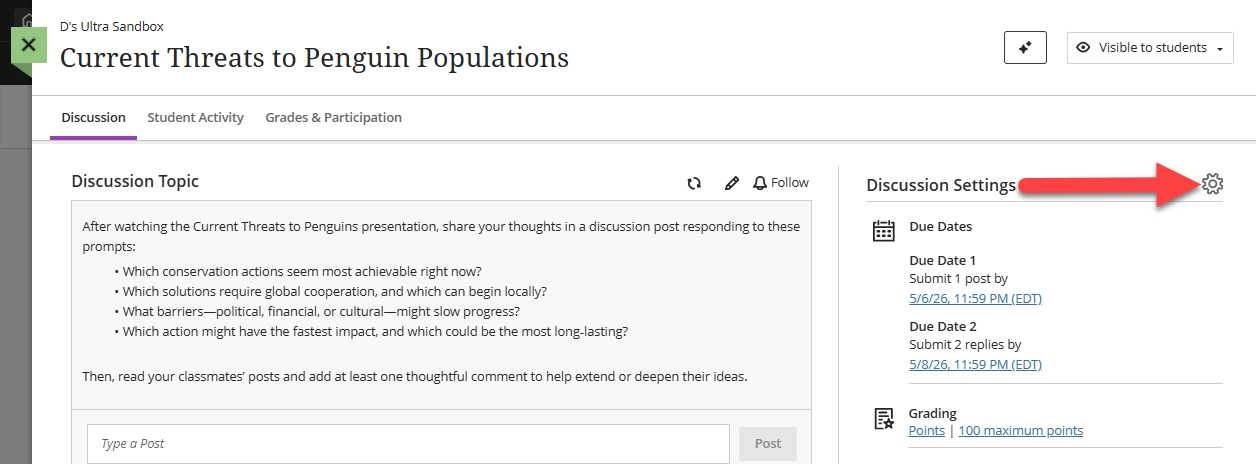
You may create a Group Discussion when creating your Discussion or you may edit an existing Discussion and assign it to groups. From your Discussion, click on your Discussion Settings.
In the Additional Tools section, select Assign to groups.
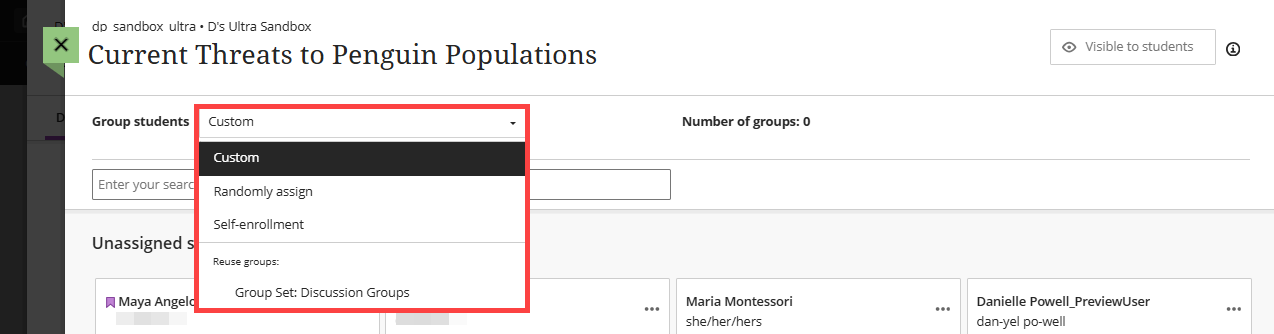
This will open the Groups page. In the Group Students menu, you may create a new group set specific to this discussion or you may select an existing course group.
Once you have created or selected your groups, click Save to return to your Discussion. Modify any additional settings and click Save to save your changes.
View Group Discussions
To view your students' contributions to the group discussion, locate the discussion either from the Course Content page or the Discussions page and click on the title to open.
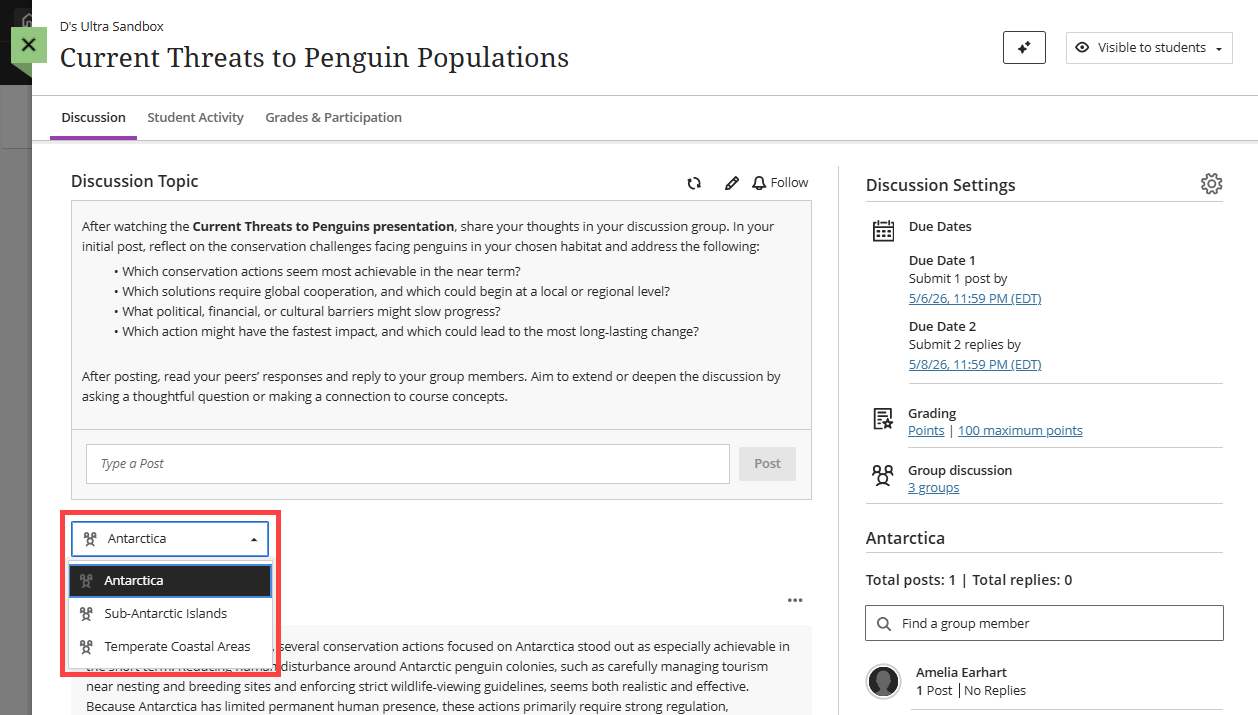
Select a group from the menu to view group members' posts and replies.
Grade Group Discussions
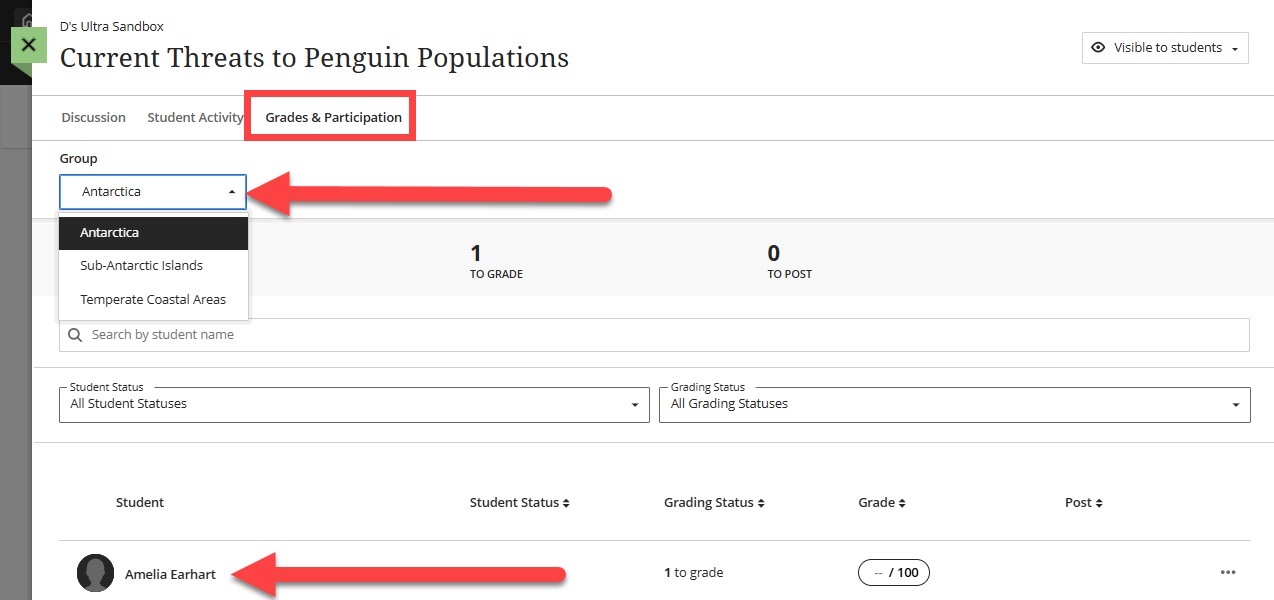
If your group discussion is graded, click on the discussion's Grades & Participation tab. Select a group and click on a group member's name to begin grading.
Refer to the Grade Group Discussions support page for more information.
Was this article helpful?
That’s Great!
Thank you for your feedback
Sorry! We couldn't be helpful
Thank you for your feedback
Feedback sent
We appreciate your effort and will try to fix the article