A screenshot is basically a snapshot of what is on your computer screen at the moment. Being able to take a screenshot is a valuable tool as it allows you to capture errors that may be difficult to replicate for a help desk technician.
ON MACOS
For Mac, you can take a screenshot of your entire desktop, just a selection of the desktop, or a window on the desktop. Before taking a screenshot, make sure all the windows you want to capture are fully visible.
To capture the entire desktop
- Press Command + Shift + 3 on your keyboard.
- The screenshot will be saved as a file on your desktop named "Picture 1."
To capture a selection
- Press Command + Shift + 4 on your keyboard.
- The cursor will turn into a cross-hairs icon, and you can then click and drag the area you want to capture. When you release the mouse, the screenshot will be taken. It will appear on your desktop named "Picture 1."
To capture a window
- Press Command + Shift + 4 on your keyboard. You can use your mouse to create a box around what you want to capture. You will hear a shutter sound and your image will appear on your desktop.
- Press the spacebar. The cross-hairs icon will turn into a camera. Press the space bar again to undo.
- Move the camera icon onto a window or object on your screen. The window or object will turn green when selected.
- With the window highlighted, press the mouse button to capture the screenshot. It will appear on your desktop named "Picture 1."
ON WINDOWS
For Windows, you can take a screenshot of your entire desktop or just the active window. This screenshot can be saved as an image file.
Before taking a screenshot, make sure all the windows you want to capture are fully visible.
If you're on a laptop running Windows, the snipping tool is your quickest way to take a screenshot, or 'snip'.
Press WIN + Shift + S on your keyboard. It will open the snipping tool.
With Snipping Tool open, select one of the following to create and work with your screenshots.
Capture a snip
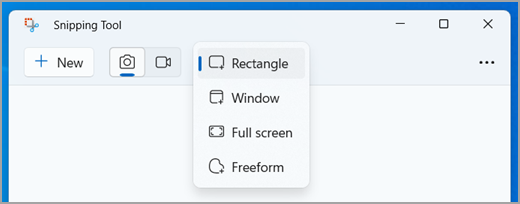
In Snipping Tool, select Snipping Mode. and choose the kind of snip you want and select New.
Rectangle: Allows you to select a rectangular area to capture.
Window: Allows you to select a window that you want to capture.
Full screen: Immediately captures a snapshot of the entire screen.
Freeform: Allows you to draw a freeform shape to select the area you want to capture.
Depending on the option you select, you would see the entire screen change slightly to gray indicating you're ready to capture a snip.
Once your snip is captured, press CTRL + C to copy your snip to the clipboard. You can now paste the image from here.
Here are some helpful quick commands for the snipping tool in Windows:
Press these keys | To do this |
|---|---|
Alt + M | Choose a snipping mode. |
Alt + N | Create a new snip in the same mode as the last one. |
Shift + arrow keys | Move the cursor to select from different types of snips. |
Alt + D | Delay capture by 1-5 seconds |
Ctrl + C | Copy the snip to clipboard |
Ctrl + S | Save the snip to file |
If you are on a Windows Desktop, there is usually a dedicated key on the keyboard for this functionality.
To capture your entire desktop
- Press the Print Screen button on your keyboard. (This button is usually located above and to the right of the function keys and may be labeled PrtSc.) Pressing this button saves the screenshot to the computer's memory.
- Now you need to open an application to paste the screenshot. Open Word, Email, or some graphic application such as Paint.
- Press CTRL + V to paste the screenshot into the application window.
To capture just the active window
- Click on the window to bring it to the front (thus making it the active window).
- Hit ALT + PrtSc on your keyboard.
Now you need to open an application to paste the screenshot. Open Word, Email, or some graphic application such as Paint.
- Press CTRL + V to paste the screenshot into the application window.
Was this article helpful?
That’s Great!
Thank you for your feedback
Sorry! We couldn't be helpful
Thank you for your feedback
Feedback sent
We appreciate your effort and will try to fix the article