This article refers to the Original Course View. If you are in an Ultra course, please refer to the Blackboard Ultra Gradebook and Grading support article.
TABLE OF CONTENTS
- Overview
- Add Audio or Video Feedback to an Assignment
- Add Audio or Video Feedback to a Grade Center Item
- More Ways to Provide Feedback
Overview
Providing feedback using audio or video allows you to connect with your students, especially those at a distance. You can give them a glimpse of your personality and show them the real person behind the text. Creating this connection can make it easier to interact, share information, and ensure that your students don’t feel isolated. Text-based feedback can lend itself to misinterpretation – students may weight all of the feedback equally or be overwhelmed by a lot of text on the page. Audio allows you to add tone and emphasis, perhaps even humor and support, while video allows you to add facial expressions and gestures.
Blackboard allows you to embed an audio/video recording of your feedback as you grade attempts. This feature is available for all graded content, including assignments, graded discussions, or in the Grade Details area of any Grade Center column.
Add Audio or Video Feedback to an Assignment
From your student’s submission, navigate to the Assignment Details area (the right-hand column). In the Feedback to Learner area, click on the Full Content Editor button. This will open the full text/content editor.

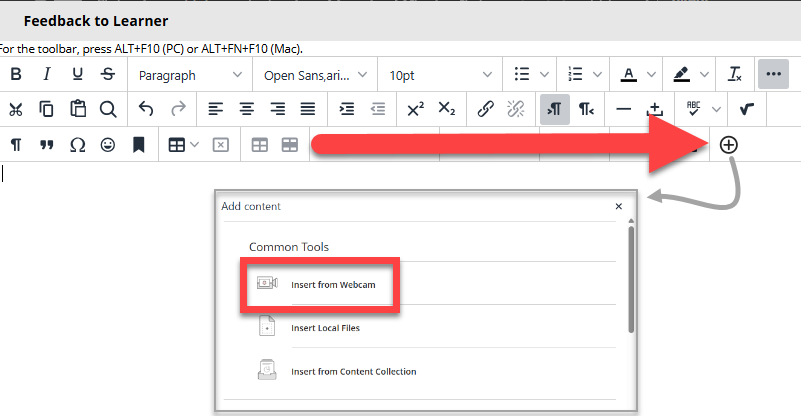
From the full text/content editor. click the Add Content button (last row of the editor). This will open a window. Select Insert from Webcam.
This will launch the recorder. Click the Video button to toggle the webcam on and off. Once you are ready, click the Record button.

Record your feedback. Each recording may be a maximum length of five (5) minutes.
Once you have finished recording, select Stop recording to review the recording and save or discard. You can delete the recording and start over if you want to re-record. Select Save and exit if you're satisfied with the recording.
Next, rename the recording and add alternative text to make it accessible to all users. The system uses the recording time and date for these fields by default.
Select Insert recording to finish the process and insert the feedback into the editor.
Refer to the Record Audio and Video Feedback support article for more information and detailed instructions.
For more information on grading assignments or accessing the students’ submissions, refer to the Grading Assignments in myLesley support article.
Add Audio or Video Feedback to a Grade Center Item
Navigate to the Full Grade Center and hover your mouse over the item you wish to offer feedback. Click the chevron to open a menu and select Quick Comment.

This will open a Quick Comment box. Click Text Editor to launch the full text/content editor.

From the full text/content editor. click the Add Content button (last row of the editor). This will open a window. Select Insert from Webcam.
This will launch the recorder. Click the Video button to toggle the webcam on and off. Once you are ready, click the Record button.
Record your feedback. Each recording may be a maximum length of five (5) minutes.
Once you have finished recording, select Stop recording to review the recording and save or discard. You can delete the recording and start over if you want to re-record. Select Save and exit if you're satisfied with the recording.
Next, rename the recording and add alternative text to make it accessible to all users. The system uses the recording time and date for these fields by default.
Select Insert recording to finish the process and insert the feedback into the editor.
Refer to the Record Audio and Video Feedback support article for more information and detailed instructions.
For more information on the Grade Center, refer to the myLesley Grade Center and Grading support article.
More Ways to Provide Feedback
If you recorded audio or video feedback in a different tool, you may upload it using the Kaltura Mashup Tool. Follow the above steps to launch the Full Text/Content Editor, then refer to the Add Kaltura Media to your myLesley Course support article for instructions on uploading your audio or video to Kaltura.
Was this article helpful?
That’s Great!
Thank you for your feedback
Sorry! We couldn't be helpful
Thank you for your feedback
Feedback sent
We appreciate your effort and will try to fix the article