TABLE OF CONTENTS
- About Kaltura My Media
- Access Your Kaltura My Media
- Add New Media
- Search and Filter your My Media
- Edit Your Media
- Download Your Media
- Delete Media
- View Media Analytics
About Kaltura My Media
Your Kaltura My Media is a private space where you may upload and manage your media content. Here, you can view all of your Kaltura Media content, upload new media, edit your media's options, add collaborators and co-publishers, edit captions, create clips from your videos, delete videos, publish videos to the Course Media Gallery, and more.
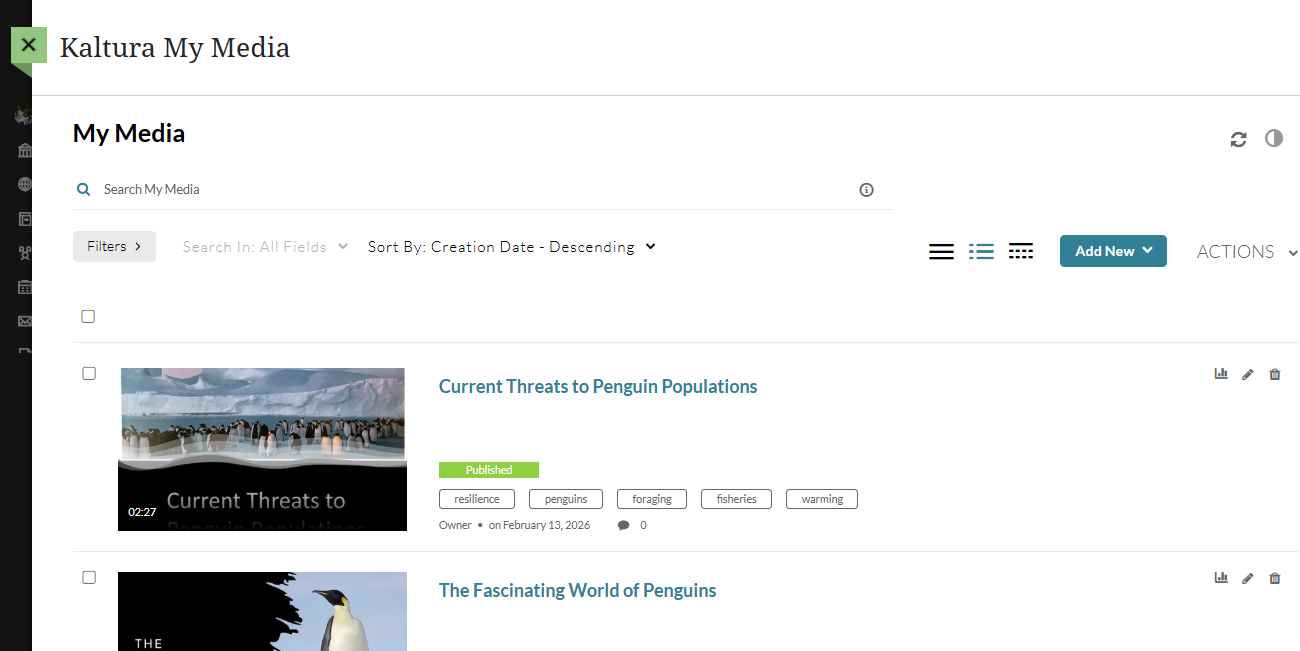
To add a video to your course content (ex on the Course Content page, or within an Ultra Document, Assignment, Discussion, etc.), refer to the Add Kaltura Media to your myLesley Course support article.
Access Your Kaltura My Media
To access your My Media, click on the Tools link in the Global Navigation menu. This will bring you to the Tools area. Select Kaltura My Media.
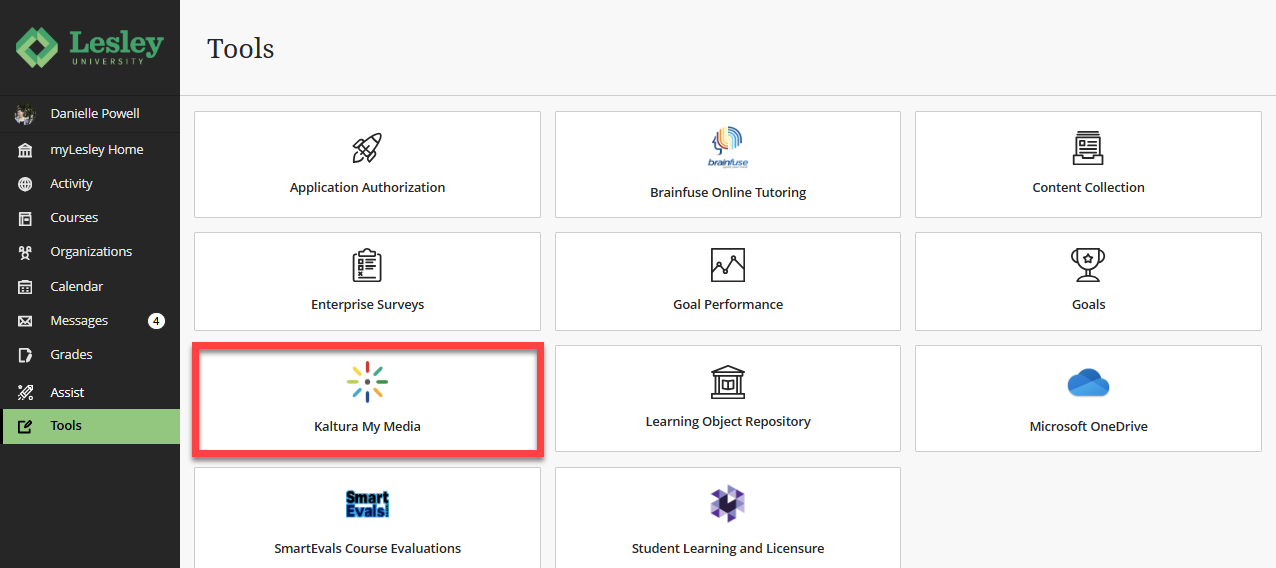
If prompted to allow Kaltura authorization, click Allow. You should only need to do this once.

Add New Media
To add new media to your Kaltura My Media, click the Add New button to open a menu.
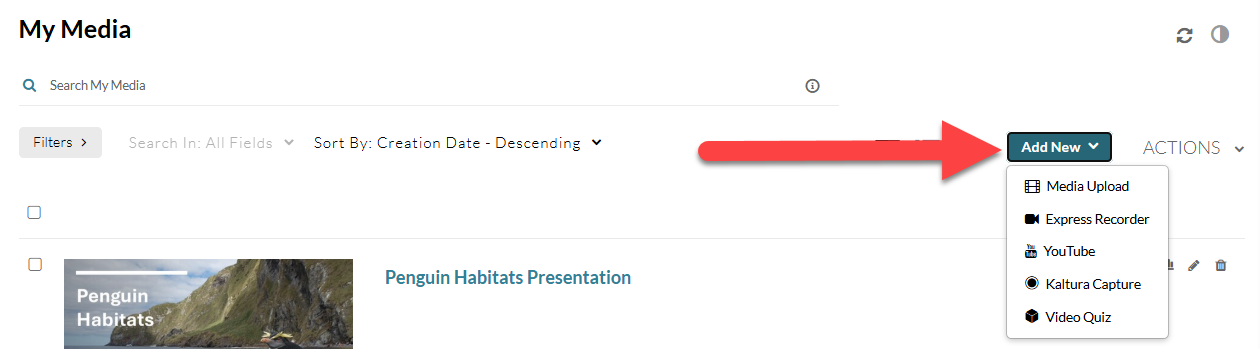
From the Add New menu you may Select:
- Media Upload: Upload media from your computer or mobile device.
- Express Recorder: Launch the Express recorder to record a combination of your screen, webcam, and microphone.
- YouTube: Add a YouTube Video to your My Media.
- Kaltura Capture: Download and launch Kaltura Capture.
- Video Quiz: Create an interactive video quiz.
Media uploaded directly to your Kaltura My Media is private by default.
To add media in your course or organization, refer to the Add Kaltura Media to your myLesley Course support article.
Search and Filter your My Media
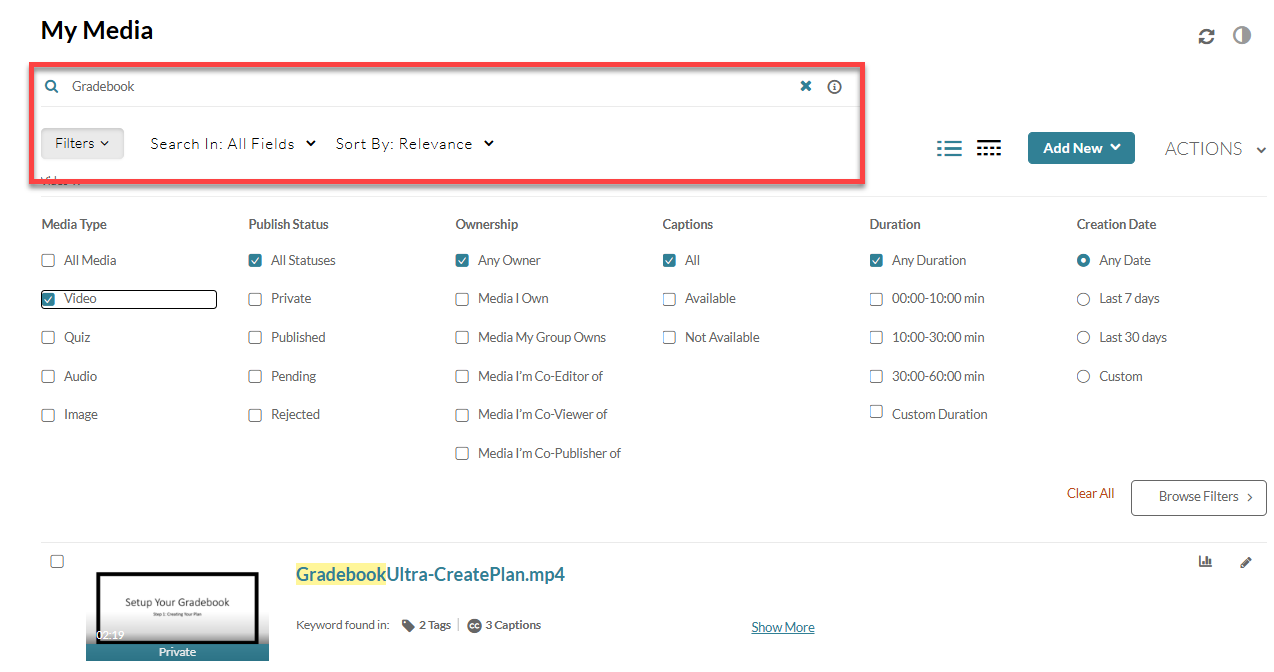
Use the Search and Filter options to find media you created or media that has been shared with you.
Edit Your Media
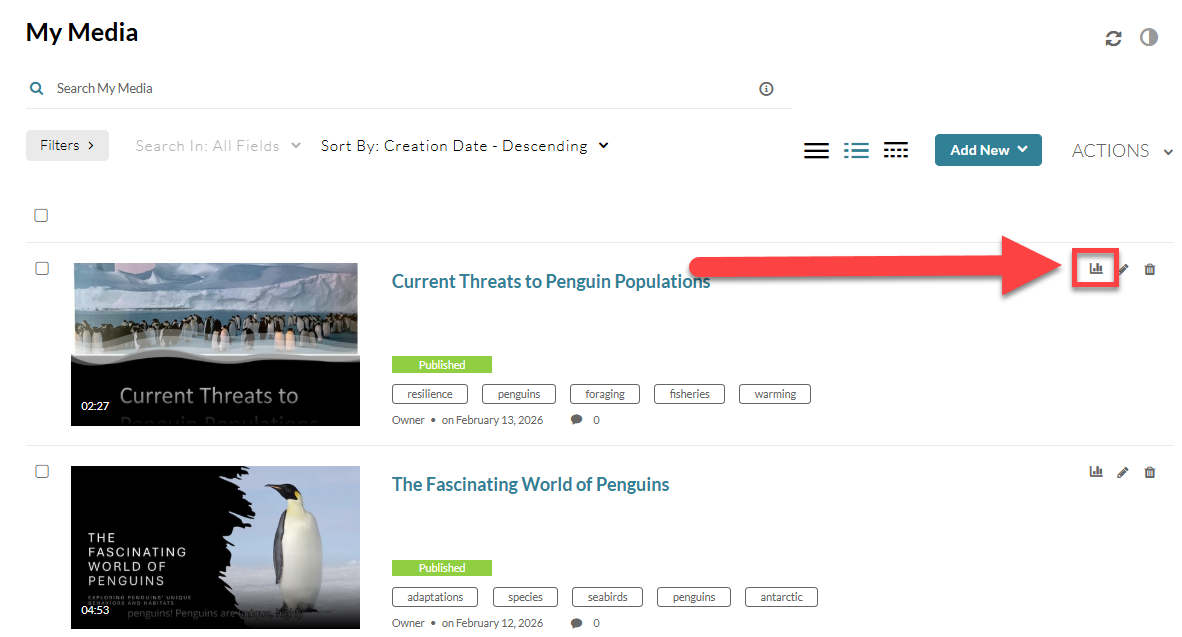
To edit your media, go to your Kaltura My Media, locate your media, and click on the edit (pencil) icon.
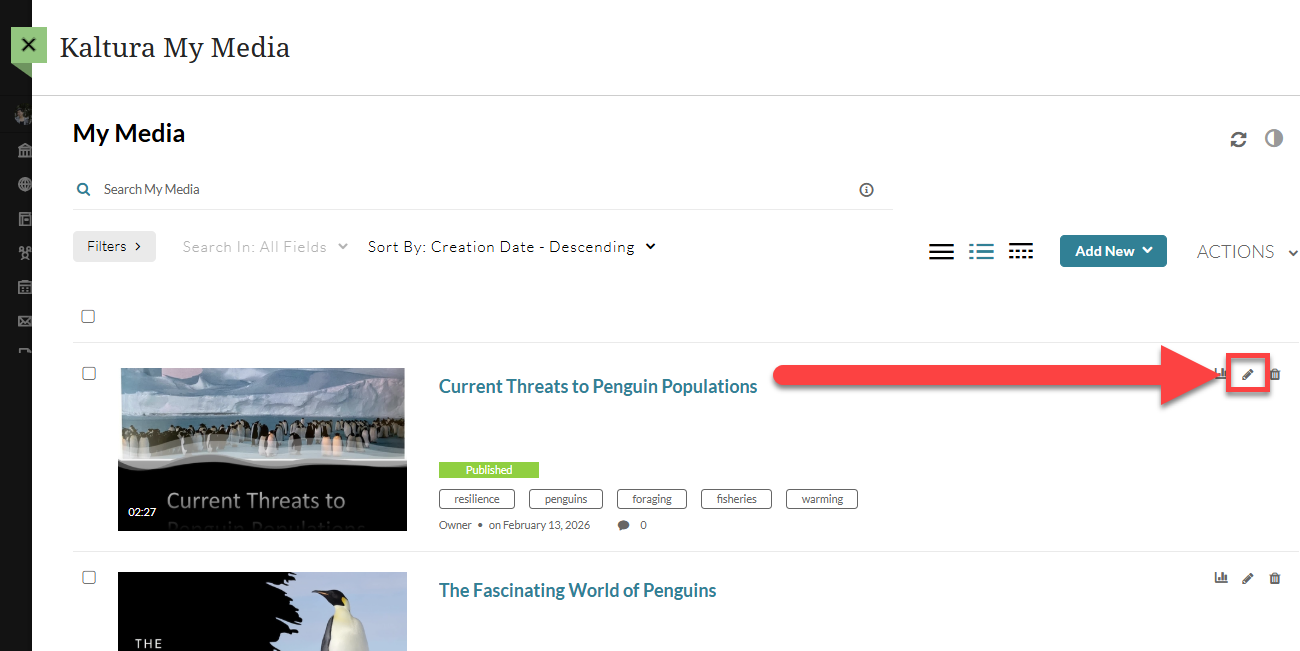
This will bring you to the Edit Media page. Here you may preview your media, launch the media editor, and edit your media details and options.
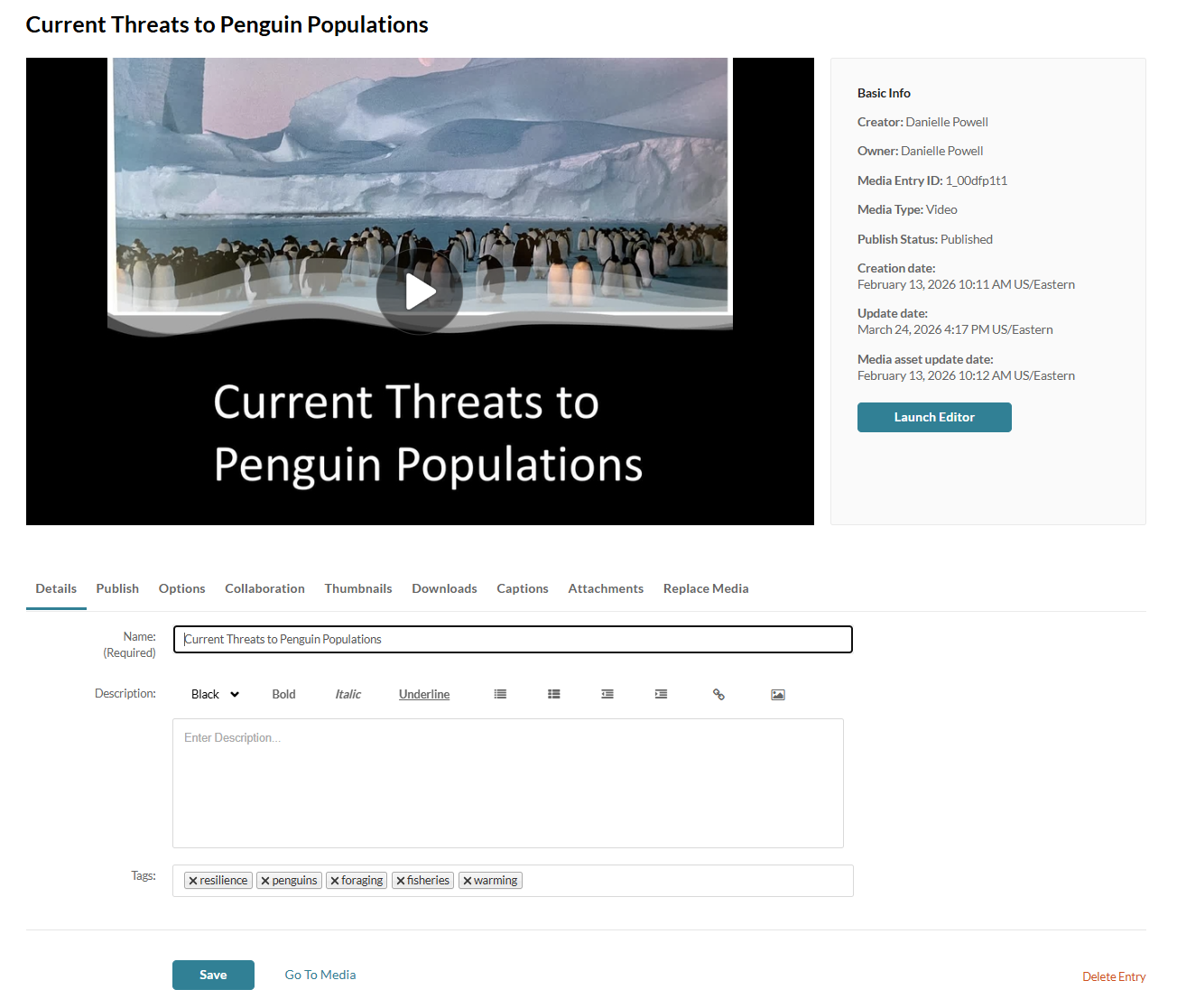
Once you're on the Edit Media page, you can:
- Launch the media editor.
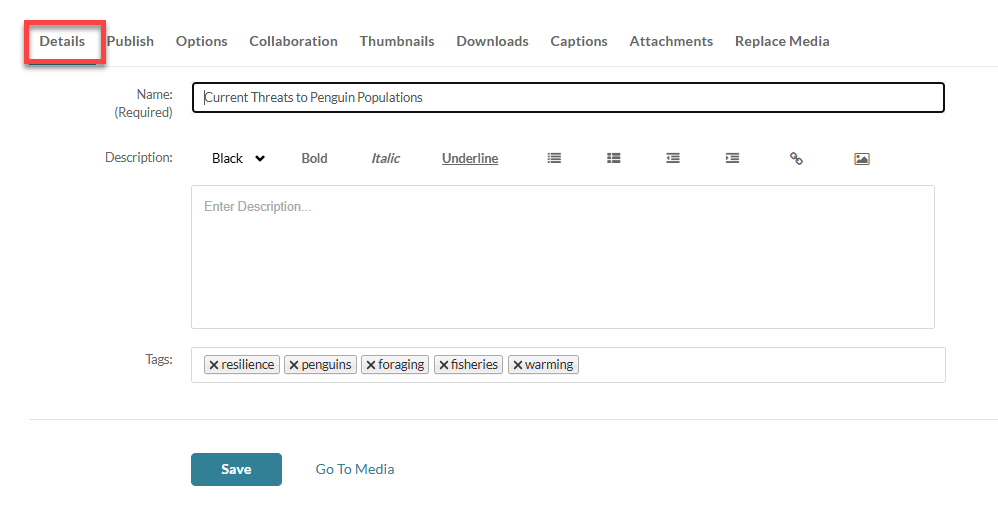
- Edit media details (including name, description, and tags).
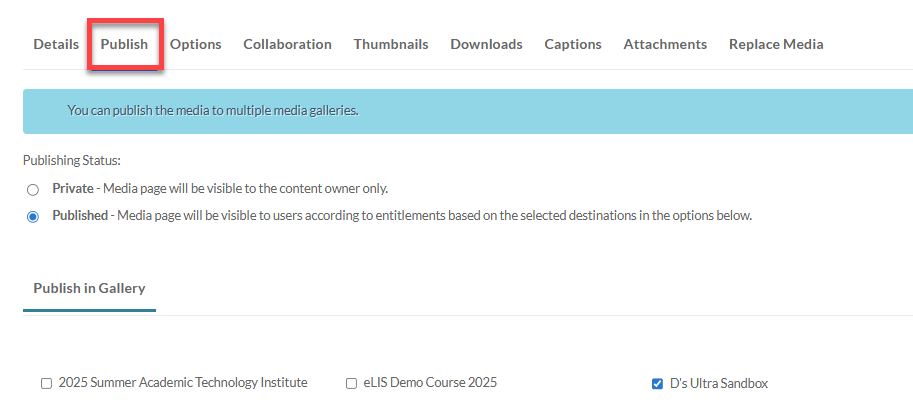
- Publish media to a course Media Gallery.
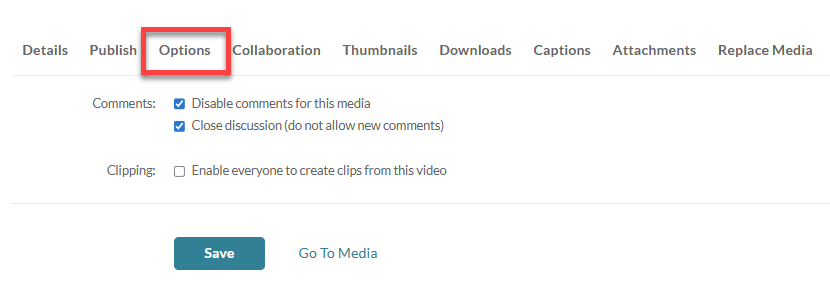
- Enable clipping.
- Disable comments and close discussion.
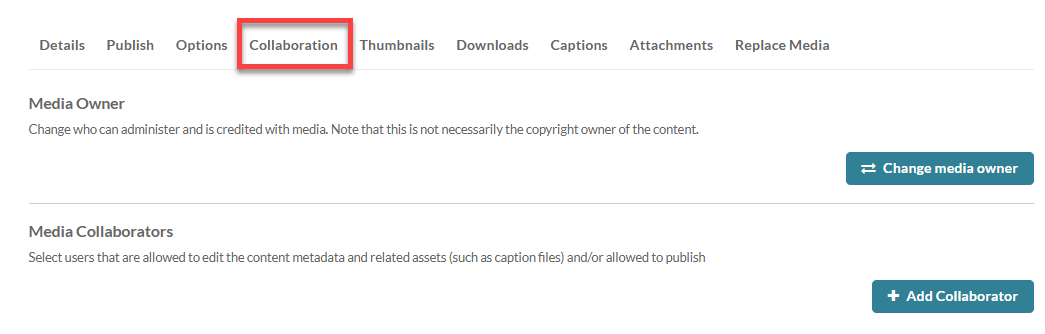
- Change media ownership and add collaborators and co-publishers.
- Upload or capture thumbnails.
- Upload and manage captions.
- Add attachments.
- Replace media.
Launch Media Editor
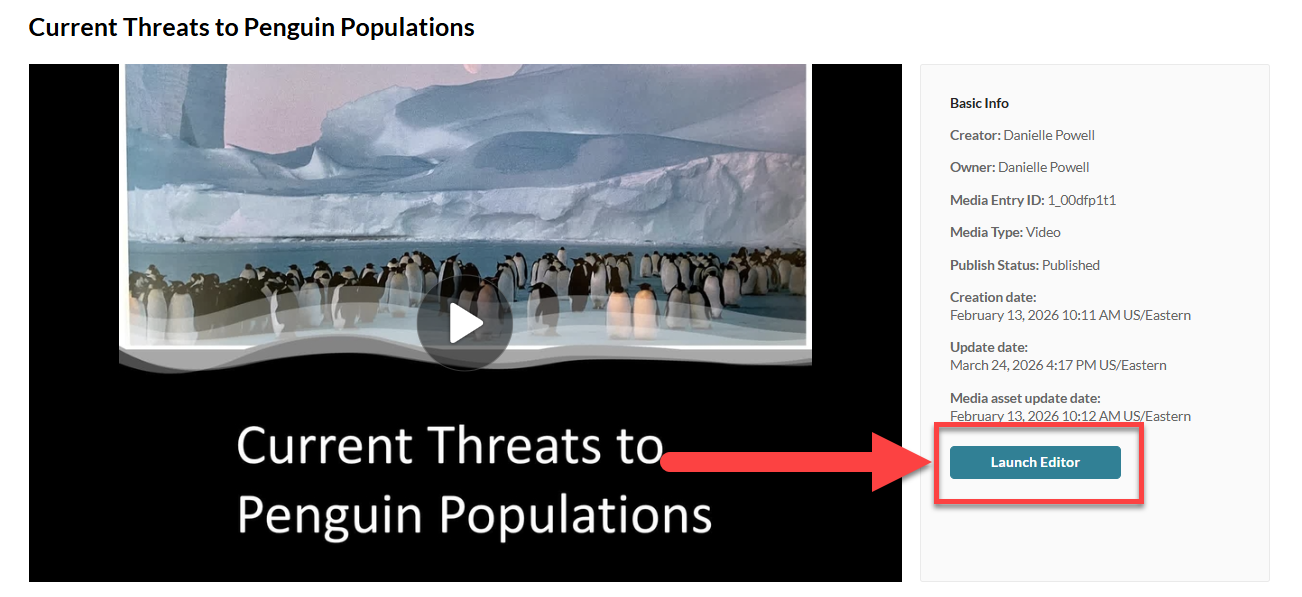
Click on Launch Editor to launch the media editor.
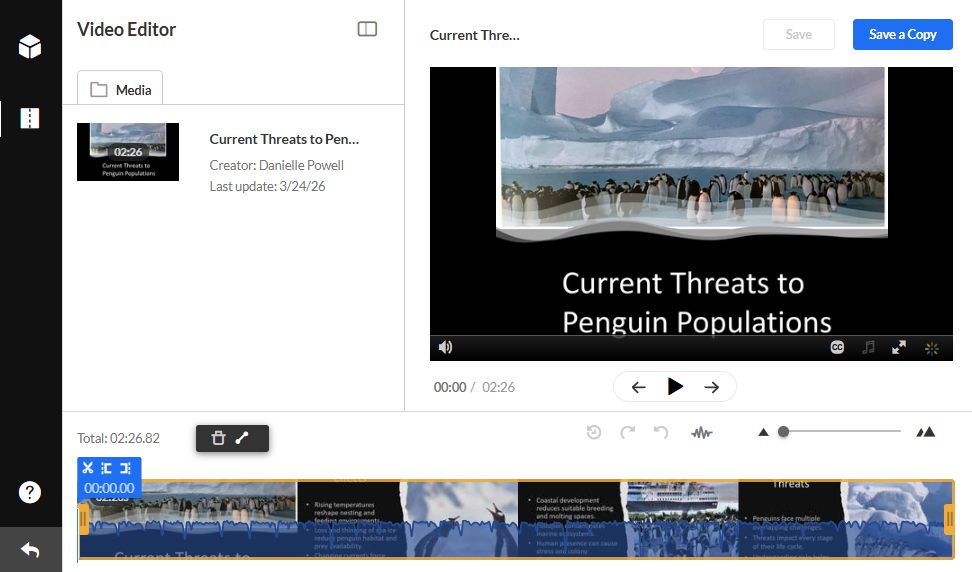
This will open the Video Editor. Here, you can trim, clip, and slice your video. For detailed instructions, refer to the Editing Videos in Kaltura Media support article.
Edit Media Details
Click the Details tab to edit your media's details, such as the title, description, and tags.
Publish to Media Gallery
Click on the Publish tab to publish your media to a Course Media Gallery.
Edit Options for Comments and Clipping
Click on the Options tab to enable or disable comments for your media and to enable others to create clips from your media.
Change Media Owner or add Collaborators and Co-Publishers
Click on the Collaboration tab to change the media ownership or allow others to collaborate or publish your media. Refer to the Kaltura Media: Add Collaborators or Change Media Ownership support article for more information and detailed instructions.
Edit, Upload, or Capture Thumbnails
Click on the Thumbnails tab to edit or replace the media's thumbnail image. Refer to the Set the Media Thumbnail in Blackboard support page for more information and detailed instructions.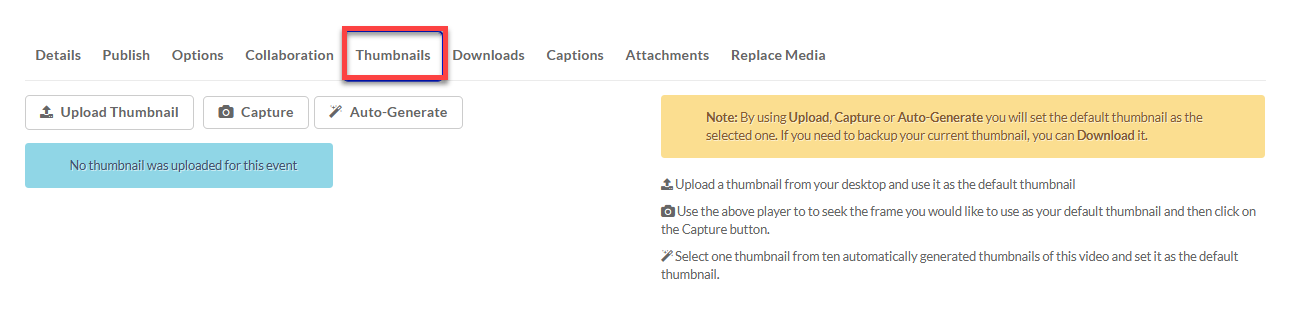
Manage Captions
Click on the Captions tab to edit your caption details, delete or download your caption file, or upload a new caption file or extended audio description.

For more information on captioning, including how to review and edit captions, refer to the Kaltura Media: Captioning Video Content support article.
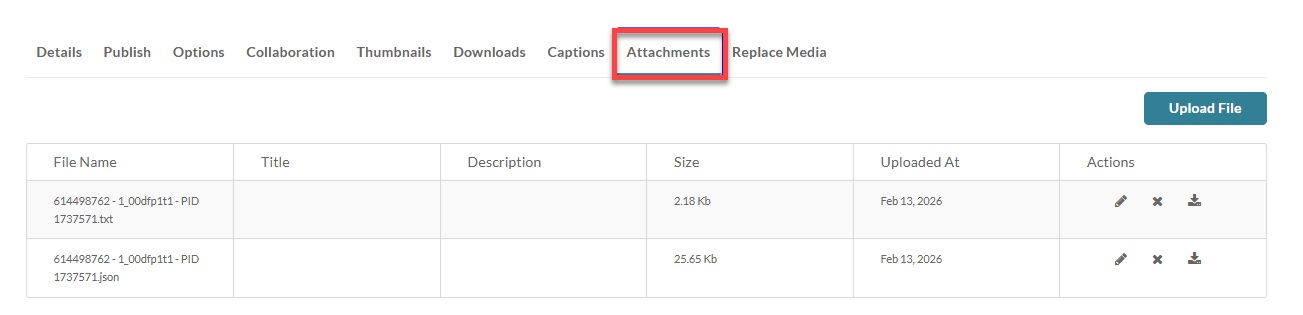
Upload or Download Attachments
Click on the Attachments tab to upload or download attachments.
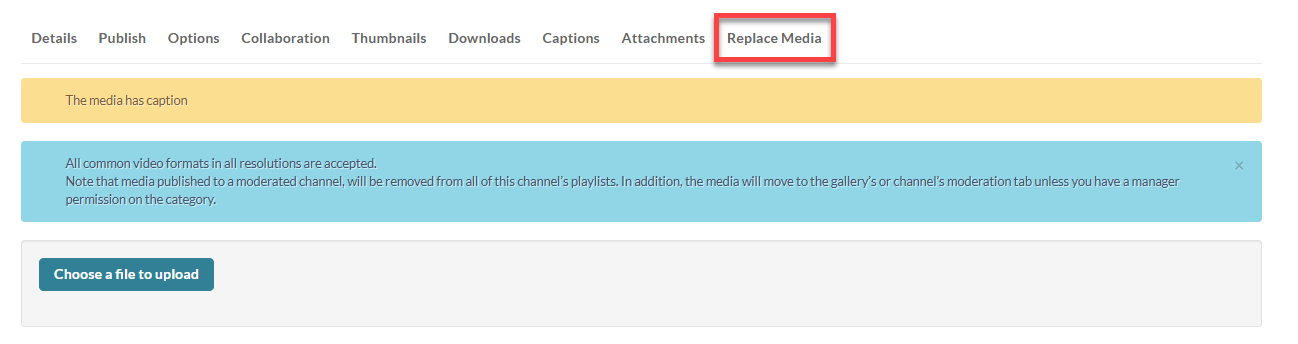
Replace Media
Click on the Replace Media tab to replace your media.
Download Your Media
To download a copy of your media, go to your Kaltura My Media, locate your media, and click on the edit (pencil) icon.
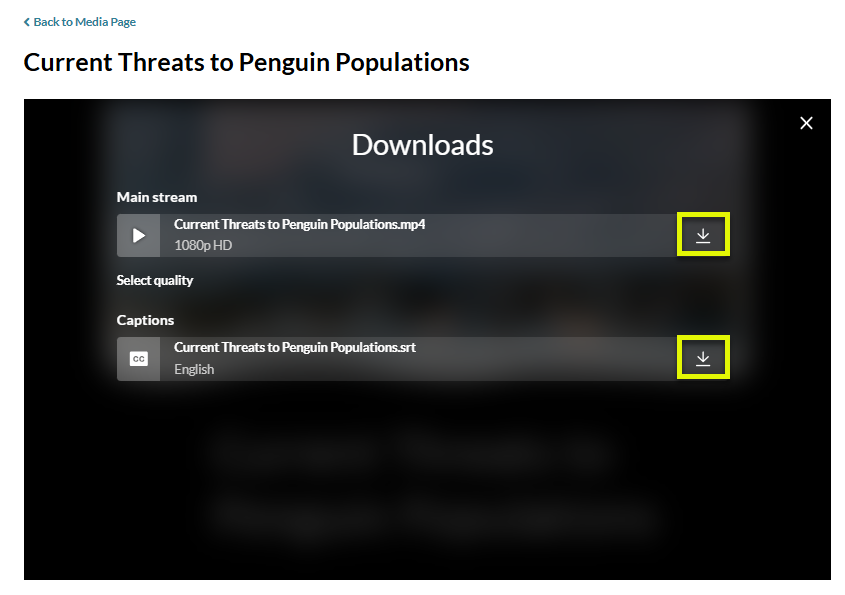
This will bring you to the Edit area. Click on your media to begin playing. Then, click the Download button on the top right corner of your media.
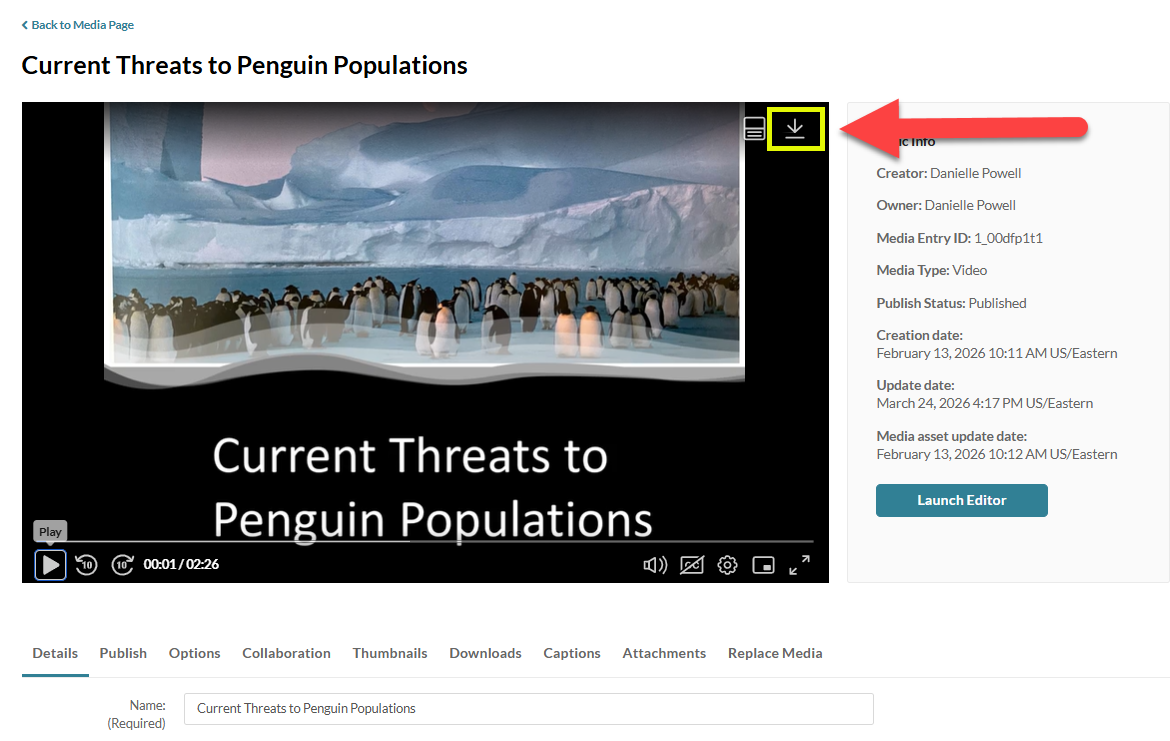
You will then have the option to download the Main Stream (your media file) and your Captions file. Click the Download button next to the item you want to download.
Delete Media
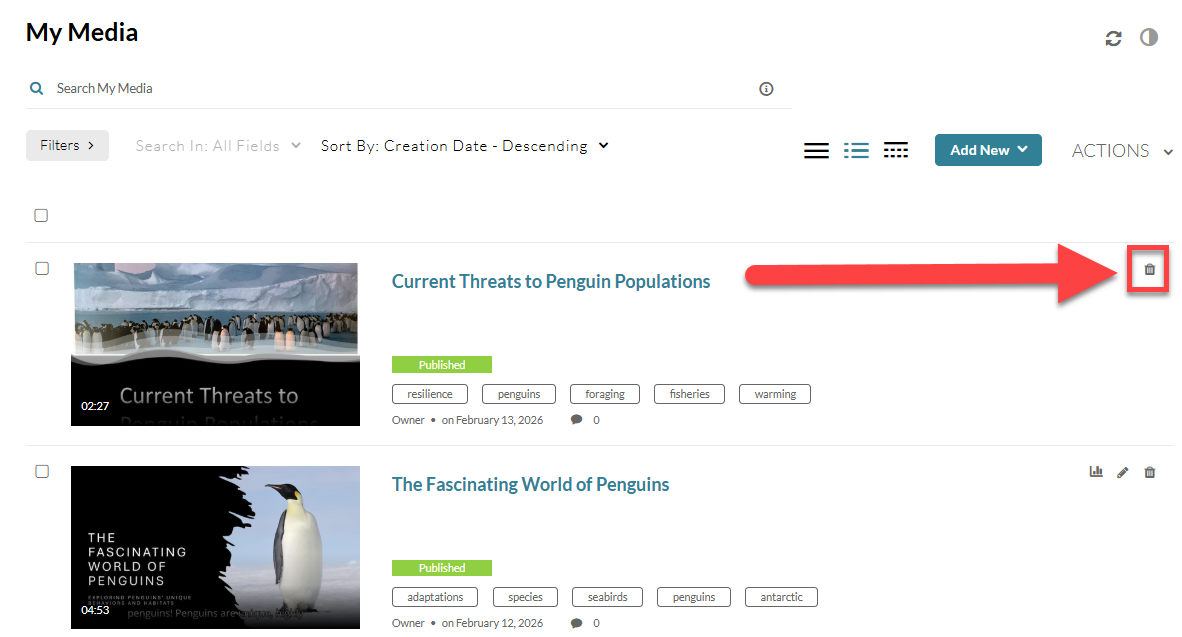
To delete your media, go to your Kaltura My Media, locate your media, and click on the delete (trash can) icon.
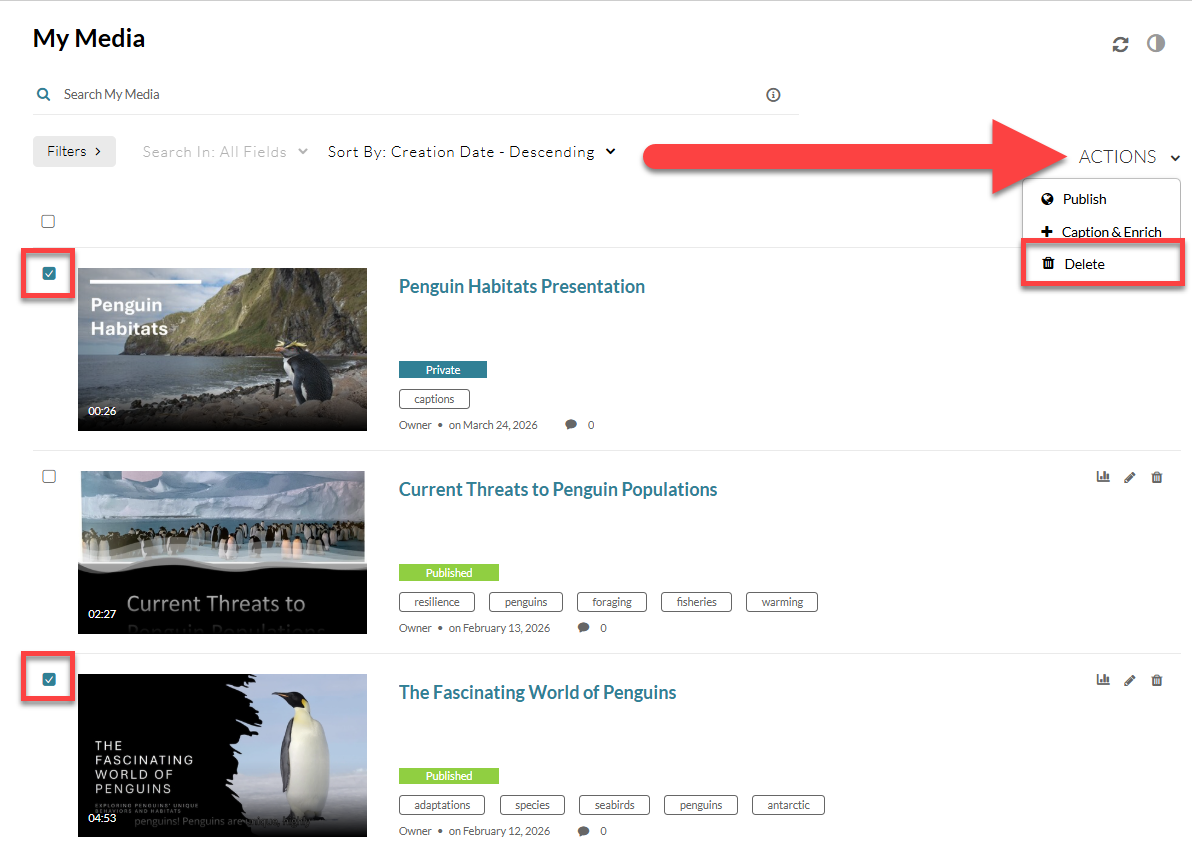
Or, to delete multiple items, select each item. At the top of the page, click the Actions menu and select Delete.
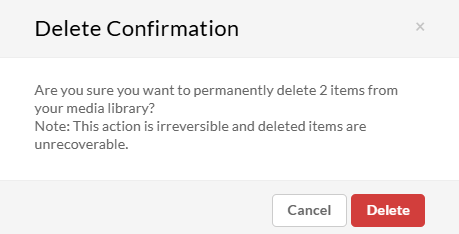
You will receive a Delete Confirmation notice. Click Delete to delete your media.
View Media Analytics
You may view analytics for your media, including the number of views, unique viewers, minutes viewed, average completion rate, and more.
Go to your Kaltura My Media, locate your media, and click on the Analytics icon. This will launch your media's entry level analytics dashboard.
Analytics Dashboard
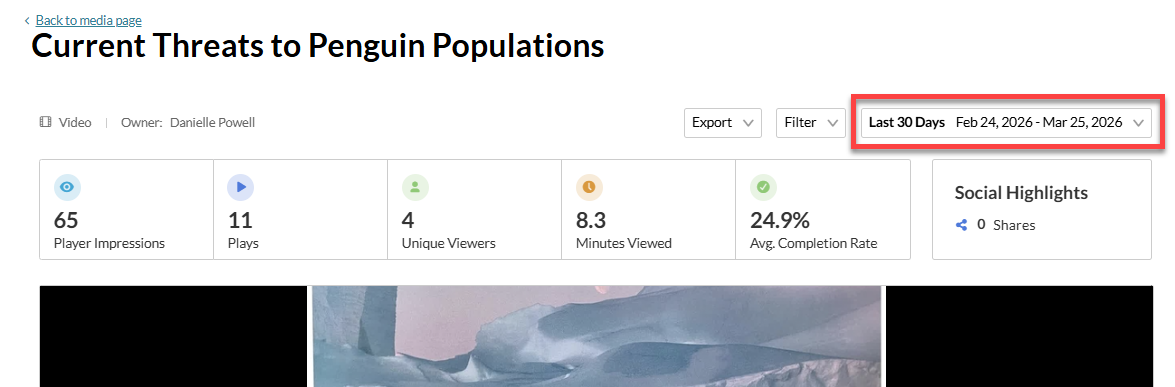
The top panel of your analytics dashboard provides an overview for your selected timeframe, including the number of plays, unique viewers, minutes viewed, and average completion rate. Refer to the Working with the entry level analytics dashboard support page for more information about the dashboard timeframe, filtering, and exporting your data.
Click on the Date Picker to update the date range for your analytics.
Views on Playback and User Engagement
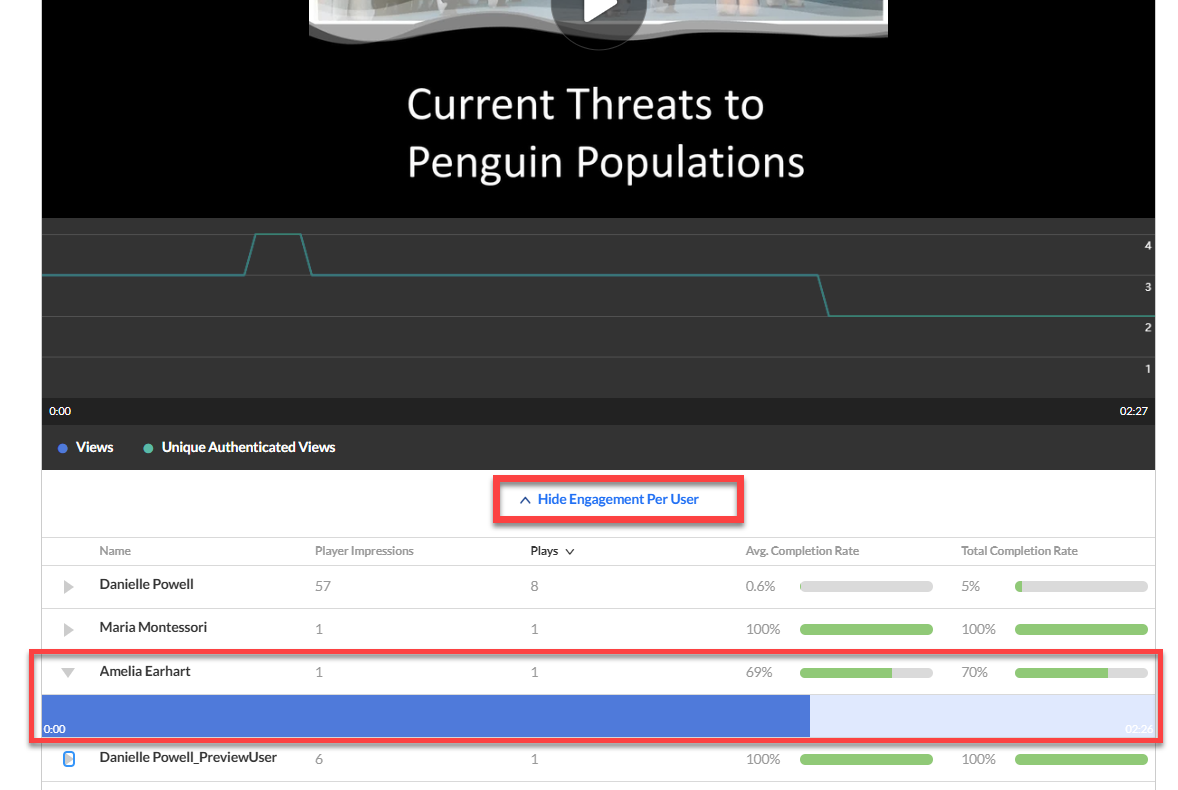
Scroll down to see the Views on Playback. Here, you can track how view counts change over time to identify which parts of your video captured interest and where viewers began to drop off.
Click View/Hide Engagement Per User to show or hide an analysis of all users that viewed this entry. Click the arrow next to a user's name to view which parts of the video they watched.
Was this article helpful?
That’s Great!
Thank you for your feedback
Sorry! We couldn't be helpful
Thank you for your feedback
Feedback sent
We appreciate your effort and will try to fix the article