TABLE OF CONTENTS
What is Student Preview
Student Preview allows you to review your course content from a student's perspective. You can check the course's look and feel, ensure release conditions are functioning as intended, submit Assignments and Tests, participate in Discussions, check grades and feedback from a student perspective, and more.
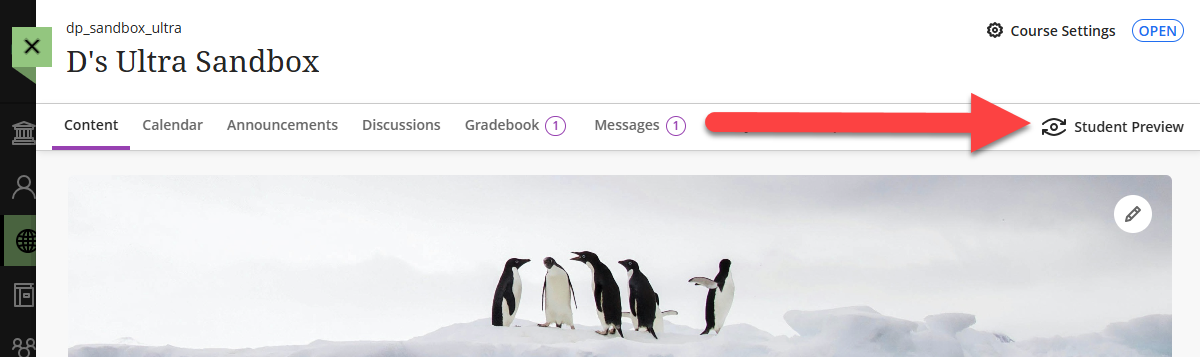
To enter Student Preview, click the Student Preview button at the top of your course page.
Use Student Preview Mode
The Student Preview button is located on the far right of the course navigation menu. Click the button to enter Student Preview.
A message will pop up letting you know that you have entered Student Preview. Click Start Preview to begin.
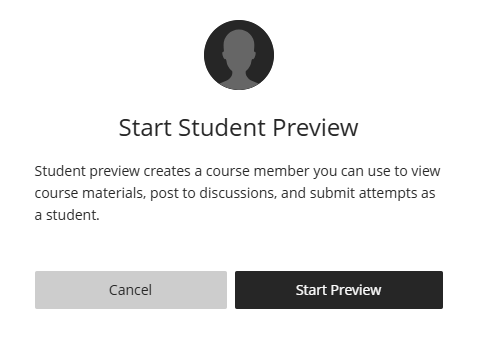
Student Preview creates a new student account in your course, called yourname_PreviewUser. All activities you perform while in Student Preview are associated with this account.

The myLesley Student Quick Start Guide will walk you through the basics of how students experience Blackboard Ultra, including navigation, Progress Tracking, submitting Assignments, participating in a Discussion, viewing grades and feedback, and more.
To exit Student Preview, click the Exit button at the top of the page.
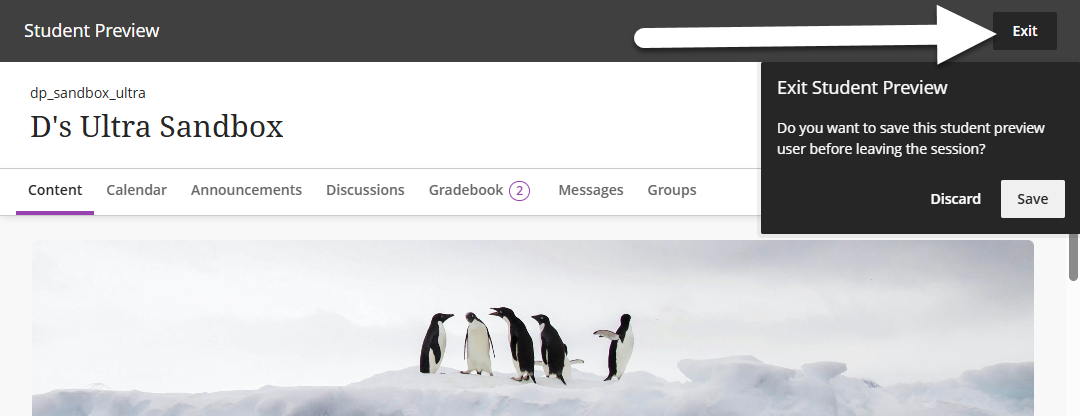
You will then be prompted to Save or Discard the Preview User (and any associated data).
- Save: Choose this option if you wish to retain the Preview User and associated data. For example, you went into Student Preview and submitted an Assignment and now wish to use your instructor account to practice grading and providing feedback. You may then opt to go back into Student Preview to view your graded Assignment and feedback as a student.
- Discard: Select this option if you are finished viewing the course as a student. Your Preview User account and all associated data (submitted assignments, completed tests, etc.) will be deleted from the course.
For more information, refer to the Student Preview support article or watch the Student Preview tutorial video.
Was this article helpful?
That’s Great!
Thank you for your feedback
Sorry! We couldn't be helpful
Thank you for your feedback
Feedback sent
We appreciate your effort and will try to fix the article