TABLE OF CONTENTS
- About Cloud Storage
- Accessing Cloud Storage in your Course
- Add Files from Cloud Storage
- Shared Computers
About Cloud Storage
Instead of saving your files to your computer or a USB drive, you may save your files in the "cloud." Cloud storage allows you to access your files from any device with an internet connection. Examples of cloud storage include OneDrive, Google Drive, and Dropbox.
Blackboard allows you to connect to multiple cloud storage apps, allowing you to easily add an attachment or submit an assignment that you stored online.
Note: When you add a file from cloud storage the system makes a copy of the file in your course The files are not linked. Any changes you make to the original file will not be reflected in myLesley.
If you are using a shared computer, HyFlex equipment, or are borrowing someone else's device, be sure to clear your cookies and site data after you sign out. This will ensure that other users can’t access your files in cloud storage.
Access Cloud Storage in your Course
Instructors
Instructors may add files from cloud storage in a number of places including:
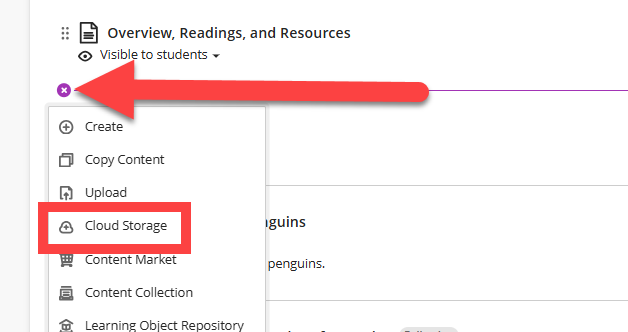
- Course Content Page: From the Course Content page, click the Add New (+) button and select Cloud Storage.
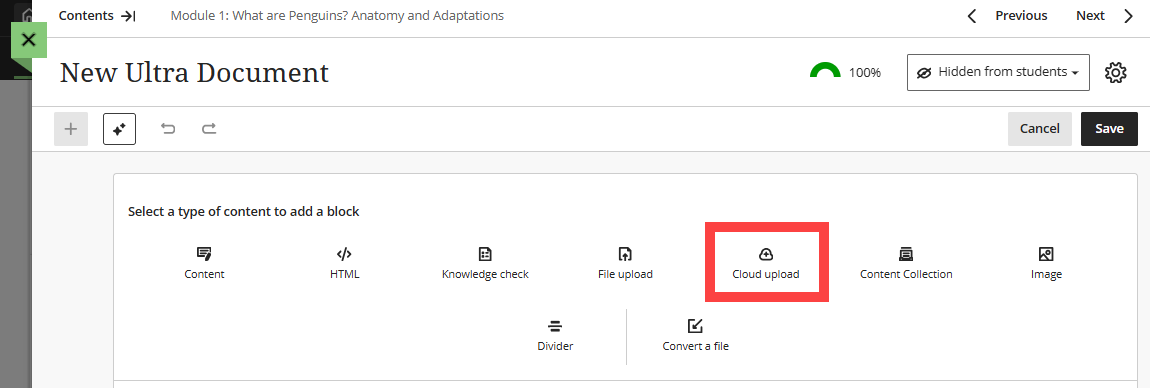
- Ultra Document: Create a Cloud Storage content block.
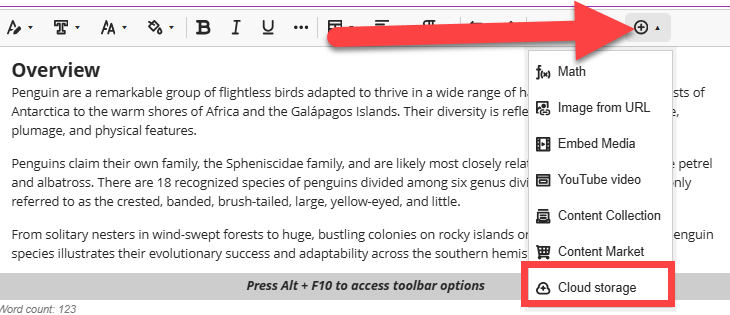
- Text/Content Editor: From the text/content editor, click the Insert Content (+) button and select Cloud Storage.
Students
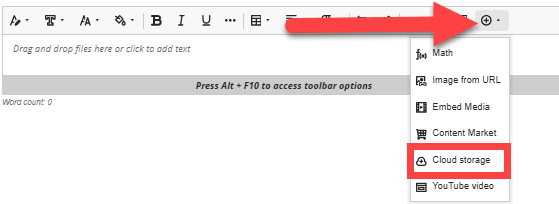
Students may attach a file from Cloud Storage into a Discussion, Assignment, Journal, or anywhere they can access the text/content editor.
Add Files from Cloud Storage
When you add files from cloud storage, the system makes copies of the files in your course. The files aren't linked. Any change you make to a file in your cloud storage will not be reflected in your course.
Once you connect to Cloud Storage you will be prompted to pick a service to connect: Google Drive, OneDrive, Dropbox, or Box. Select your cloud storage service.
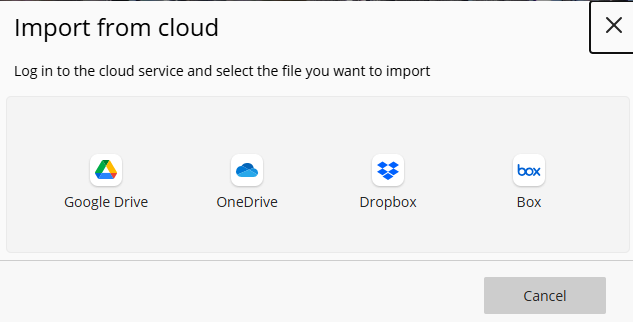
You will then be prompted to log in with your account's credentials. If you are logging in to your Lesley OneDrive account, your credentials should pass through automatically.
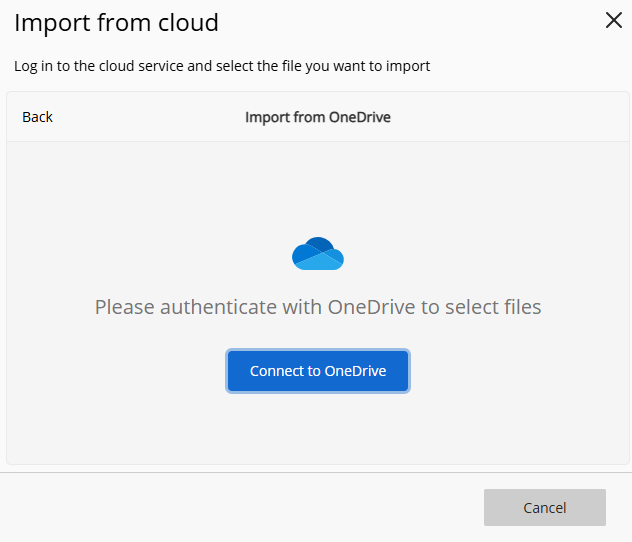
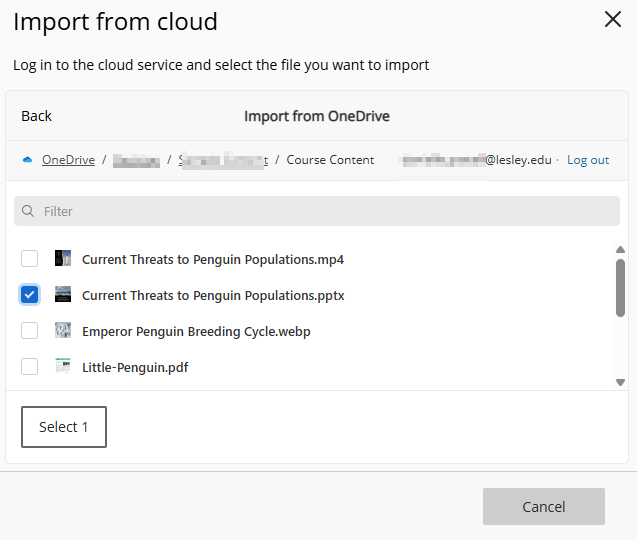
Once you have connected your account, select the file(s) you wish to import.
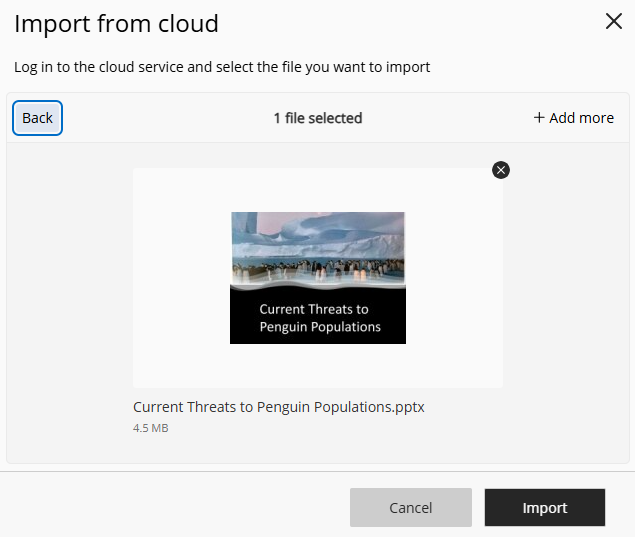
Once you have selected your file(s) click Import to add them to your course.
For more information on using cloud storage in your course, please refer to Cloud Storage Files support article.
Shared Computers
If you are using a shared computer, HyFlex equipment, or are borrowing someone else's device, be sure to clear your cookies and site data after you sign out. This will ensure that other users can’t access your files in cloud storage.
Was this article helpful?
That’s Great!
Thank you for your feedback
Sorry! We couldn't be helpful
Thank you for your feedback
Feedback sent
We appreciate your effort and will try to fix the article